
Table of contents
- Quick nav
Convert PNG to WebP Online Free: Keep Alpha, Skip Store Uploads
“Convert PNG to WebP” is the wrong button for store screenshots
The same UI capture can be perfect as a site asset and illegal as an App Store Connect or Google Play upload. Teams often run every export through a WebP converter, then wonder why Connect rejects the file—WebP is simply not on the store allow-list.
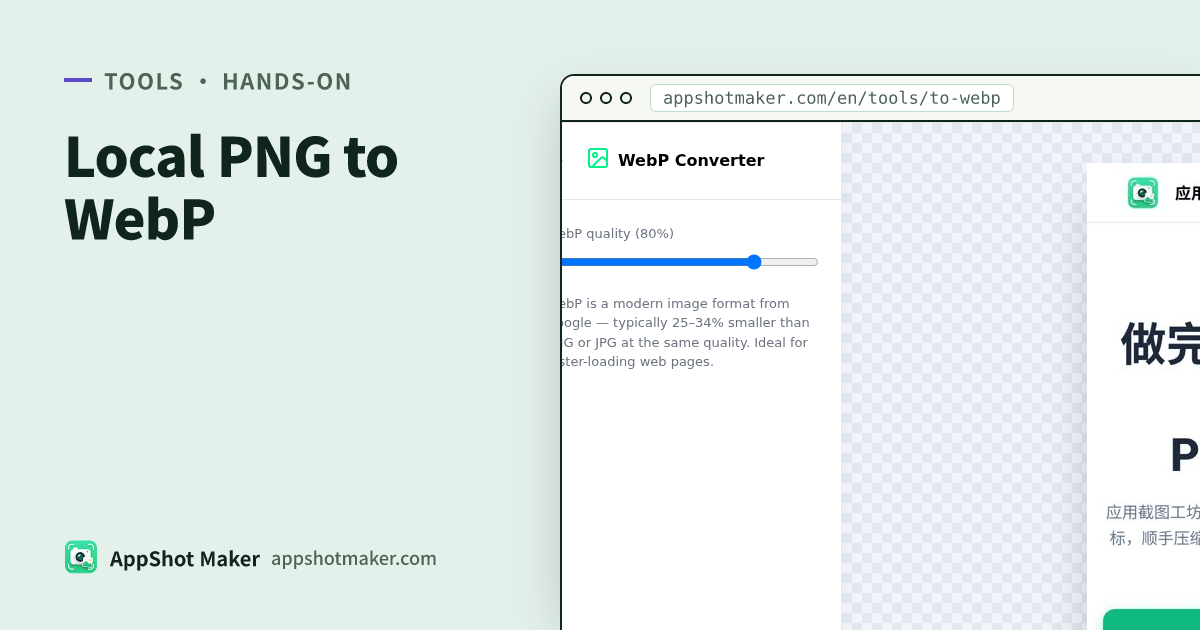
WebP Converter encodes PNG or JPG to WebP in your browser: quality 10–100% (default 80%), transparency can be kept, about ≤20 MB per file, nothing uploads. Checked 3 Nov 2026.
Store listing vs website: format table
| Destination | Accepted formats (checked 3 Nov 2026) | WebP OK? | Notes |
|---|---|---|---|
| App Store screenshots | .jpeg / .jpg / .png | No | Apple screenshot specifications: no alpha / transparency |
| Google Play screenshots | JPEG or 24-bit PNG (no alpha) | No | Play preview assets |
| Play feature graphic | JPEG or 24-bit PNG, 1024×500 | No | Same doc; no alpha |
| Marketing site / docs | Any modern browser WebP | Yes | Often much smaller than equivalent PNG/JPG |
| Open Graph / social cards | Platform-dependent; JPG/PNG safest | Careful | When unsure, export PNG/JPG; use OG share image for sizes |
Rule: store uploads stay on the JPEG/PNG pipeline (compress, screenshot check). Use WebP when the consumer is a browser page or a CDN that you control.
How we convert on this tool (first-hand)
- Open /en/tools/to-webp and drop a PNG or JPG (WebP in is fine if you only want to re-encode quality).
- Set quality: 80% fits most web images; try 90–100% for thin UI type; 70–80% for photo-like heroes.
- Confirm alpha still looks clean on logos or cutouts, then download
.webp. - Spot-check bytes with file size before you commit a whole folder.
Encoding uses the browser’s built-in WebP encoder. Some older Safari builds cannot encode WebP and the tool may fall back to PNG—prefer Chrome or Edge when you must ship WebP.
Quality ladder (100% is not always “best”)
| Asset | Starting point | Why |
|---|---|---|
| Photo-style hero | 70–85 | Noise hides well; size wins |
| Web image with fine caption type | 85–95 | Soft edges hurt more than a few KB |
| Transparent logo / sprite | 90–100 or keep PNG | Jagged alpha is a brand bug |
| Already-compressed JPG → WebP | 75–85 | Stacked loss shows up fast—preview first |
WebP will not invent missing detail. Soft screenshots need better source capture (or a light pass in sharpen), then a format choice.
How this fits next to compress and PNG tools
| Goal | Tool |
|---|---|
| Shrink store PNG/JPG, often with palette transparency | Compress (guide) |
| Ship WebP on a site | This tool /en/tools/to-webp |
| Lossless bitmap for more editing | Convert to PNG (files usually grow) |
| Fixed social card sizes | OG share |
Alpha: when to keep it, when to flatten
| Asset | Suggestion | Why |
|---|---|---|
| Cut-out logo, sticker, sprite | Keep alpha, then WebP | Lets CSS/img sit on any page background |
| Full-bleed marketing frame already on a solid fill | Opaque encode is fine | Dropping alpha can shrink a bit more |
| Anything headed to a store console | Do not use WebP; avoid alpha on PNG too | ASC and Play reject transparent screenshots |
| “Glass” UI that is already baked onto a background | You usually do not need alpha | What looks translucent is often flattened already |
The converter preserves source alpha when present; it will not invent transparency. When unsure, preview the WebP on both a dark and a light matte.
Reproduce a size test on your own three files
Ignore blog claims like “60% smaller on average.” Benchmark three of your assets:
- One fine-type UI web derivative, one photo-style hero, one transparent logo.
- Export each at 70 / 80 / 90 in /en/tools/to-webp.
- Compare KB with file size and open them on the real page.
- Write the team rule down (for example: heroes ≤80, docs ≥85).
A 1170×2532 UI PNG often halves at WebP 80%, while a thin-line icon may only drop ~20%. Your corpus wins over averages.
Do not treat compress and WebP as the same step
Compress is for PNG/JPG that still must pass a store—palette PNG, MozJPEG, console size caps.
WebP convert is for assets that already belong on a site or CDN.
A clean pipeline keeps a PNG/JPEG master for stores, then derives a WebP sibling for the marketing site—never convert the only master away from a store-safe format.
Browser support note (shipping, not encoding)
Modern Chrome, Edge, Firefox, and current Safari display WebP fine. The sharp edge case on this tool is encoding on older Safari builds, which may fall back to PNG. Encode on Chromium when the deliverable must be .webp, then smoke-test the page in Safari.
Mistakes we see every week
- “WebP will pass a 1 MB China-store cap.” Most consoles still expect JPG/PNG. Treat WebP as a web format unless that store’s docs explicitly list it.
- “Transparent WebP for App Store.” Apple forbids alpha on screenshots; Play screenshots also require JPEG or 24-bit PNG without alpha.
- “Always export at 100%.” Near-lossless WebP loses most of the size win; 80% is the usual web trade-off.
Minimum checklist
- Is this file for a store console or a website?
- Store path → stay on JPEG/PNG; do not convert to WebP.
- Site path → encode in Chrome/Edge; proof fine type and alpha.
- Compare file size, then lock quality.
- Need consistent names after a batch convert? Use batch rename.
Clear destination rules beat another “convert everything” toggle. The tool only encodes locally—you still decide what the store will accept.