
Table of contents
- Quick nav
Compress Screenshots Online Free: Keep PNG Transparency, Then Upload
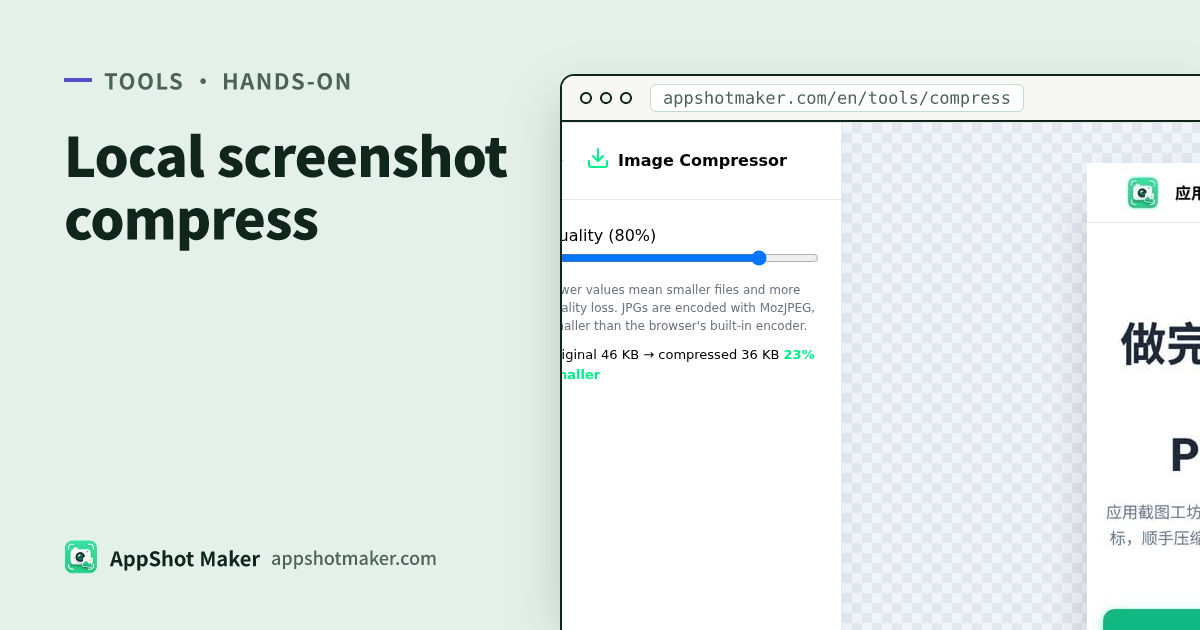
Most compressors optimize vacation photos. Store shots are different.
People searching compress screenshots online usually need three things at once:
- Shrink a PNG that is mostly UI chrome and large type without melting the letters;
- Keep transparency for icons or cutouts;
- Stay under a store’s byte ceiling without uploading an unreleased product UI to a random CDN.
The image compress tool on this site is built for that loop. By default it runs open-source pngdeer (MIT) to write a palette PNG that keeps alpha. You can switch to MozJPEG when a JPG is the better container. WebP inputs stay WebP unless you change course. Everything runs in the browser via Canvas / WASM—nothing is uploaded.
Checked 2026-10-31. One image at a time; about 20MB per file is a practical ceiling.
Decide first: keep PNG or convert to JPG
| Asset | Prefer | Why |
|---|---|---|
| App UI screenshots, caption-heavy store frames, icons, transparent stickers | Keep PNG (default) | Palette compression likes flat UI colors; alpha survives |
| Photo-like backgrounds, heavy gradients, channels that demand JPG | Convert to JPG, start near 80% quality | MozJPEG is usually smaller at the same perceptual quality; alpha becomes white |
| Already WebP | Stay on WebP | Re-encode in the same family |
| GIF / BMP | Lands on the JPG path | This page is not a GIF optimizer |
Rule of thumb: text-heavy store creatives → try smart PNG first. Only drop to aggressive JPG after you know the pixel size is already correct.
Google Play’s preview-asset rules (fetched 2026-10-31) require screenshots as JPEG or 24-bit PNG with no alpha, and the Feature Graphic is exactly 1024×500 with no transparency (Play Console Help). Apple’s screenshot specifications also ban alpha. So:
- Transparent PNGs are fine while you composite;
- Before App Store Connect / Play upload, flatten or convert if alpha remains—then run screenshot compliance check.
Three local steps
- Open /en/tools/compress and drop one screenshot.
- PNG: compression starts automatically; compare byte sizes after a few seconds. Default is Keep PNG. Transparent areas turn white only if you choose Convert to JPG.
- JPG / WebP: drag the quality slider (70–85% is the usual band). If the result would be larger than the original, the tool keeps the original. Export.
Licenses (same as the tool FAQ): PNG via pngdeer (MIT); JPG/WebP via MozJPEG / libwebp through jSquash (Apache-2.0). Vendor license files live under /vendor/pngdeer/ and /vendor/jsquash/.
How this relates to hard channel caps
Some China Android stores enforce tight byte limits (for example OPPO’s common 1080×1920 and under 1MB pattern). That pixel-first playbook lives in OPPO screenshots under 1MB.
This compressor does not resize. A clean pipeline is:
- Export at the target pixels from /en/preview or your design tool;
- Shrink bytes with /en/tools/compress;
- Validate size / format / volume in /en/tools/screenshot-check against App Store, Play, and major China stores;
- If a single channel still rejects on volume, use the OPPO-specific article for that last mile.
Multi-size ZIP exports: batch store screenshots and /en/tools/batch-processor. Remove a background first: /en/tools/remove-bg.
When quality goes wrong
| Symptom | Likely cause | Fix |
|---|---|---|
| Soft type, banding on flat fills | JPG quality too low or re-saved many times | Return to a PNG master; raise quality or stay on PNG |
| Transparency became a white box | Convert to JPG was on | Switch back to Keep PNG |
| Almost no size win | Already tiny WebP/JPG, or a very simple graphic | Change pixel dimensions or accept the size; the tool keeps the original when “compressed” would grow |
| Store still rejects | Alpha, wrong pixels, or over-limit bytes | Fix whatever compliance check marks red—not “it got smaller” alone |
What we built into /en/tools/compress
This is not a wrapper around a remote encode API. The page loads the codecs in the browser, shows before/after bytes, and refuses to download a “compressed” file that got larger than the source. FAQ on the tool page covers the same limits we state here: one file at a time, transparency only in Keep PNG mode, and open-source licenses you can open under /vendor/.
If you are packing a marketing mock with gradients, browser chrome, arrows, or batch ZIP export, that workflow is /en/tools/screenshot-beautify—compress after you like the frame, not before you still need lossless edits.
Bottom line
Compress screenshots online for shipping creatives is a decision problem first: palette PNG with alpha versus MozJPEG for photographic frames, then a compliance pass for “no alpha” and channel byte caps. Use /en/tools/compress locally, then screenshot-check—safer than uploading unreleased UI, and more repeatable than dragging a quality slider until the file “looks okay.”