
Table of contents
- Quick nav
Should a Screenshot Label Sit on the Photo?
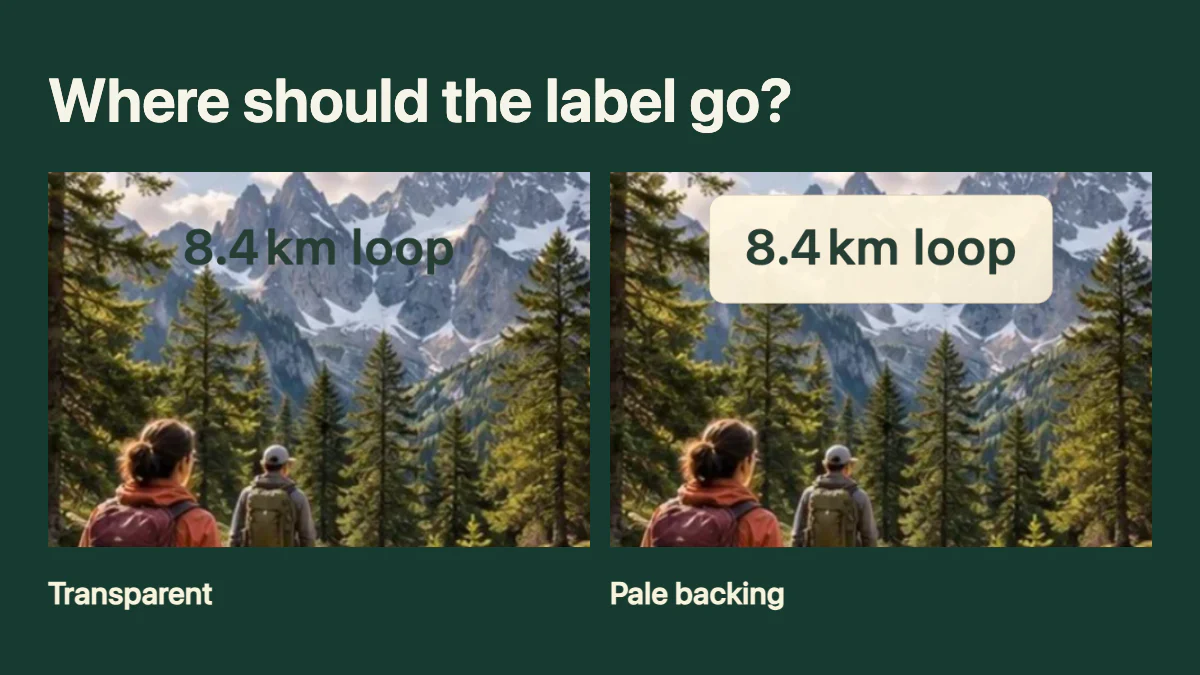
Our fictional hiking app Ridgewalk has a route screen that shows "Pine Ridge Loop," with "8.4 km" underneath. The same distance repeats in a green strip below an alpine photo of two hikers, conifers, and a rocky skyline. We wanted to know whether a short feature label reading "8.4 km loop" helps that screenshot or only crowds it.
We exported four 1080 × 1920 PNG boards for each language. The app screen, device frame and background stay fixed. Each added label uses the same dark green ink and 60 px type. The label is a single line with no icon and no subtitle.
Four versions of one label
- A puts the dark green label, with a transparent background, across the mountain face.
- B keeps A's position and text and adds a warm pale backing.
- C takes A's transparent label and moves it onto the pale green margin above the phone.
- D removes the label. The UI still shows the route name and distance.
A and B differ only in backing. A and C differ only in position.
What the close crops and the 160-pixel boards show
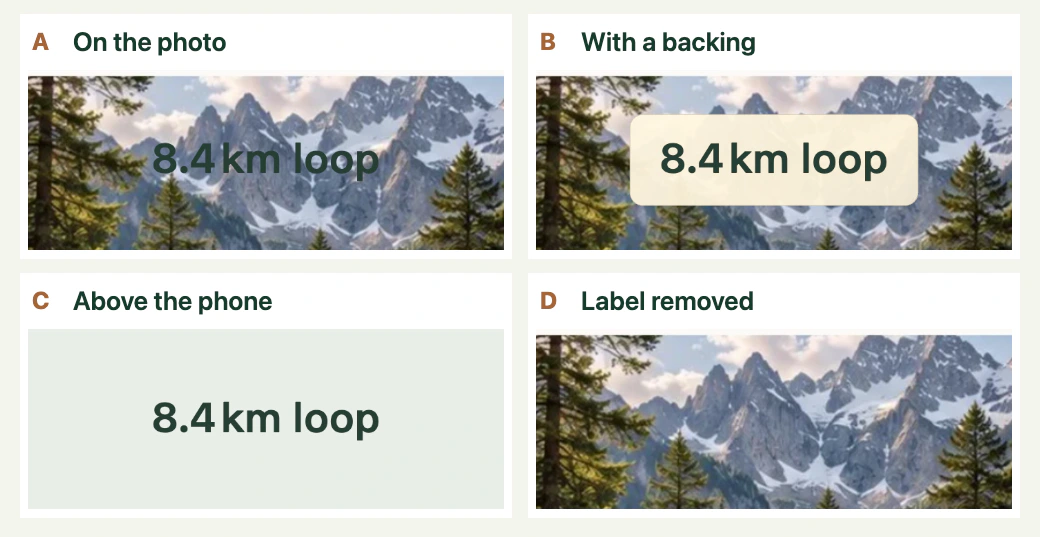
At full size, A is legible against the patches of snow. Where the strokes cross shaded rock, parts of the letters blend into the mountain. B fixes the contrast, but the pale backing covers a strip of ridge and makes the photo look patched. C reads cleanly on the margin and leaves the photo whole. D shows the photo exactly as it was shot.
Next we downsampled each whole board to 160 pixels wide. That width is our own thumbnail stress test, not a store specification. At that scale the 60px font comes out around 9 pixels before font metrics, so small contrast problems become large ones.
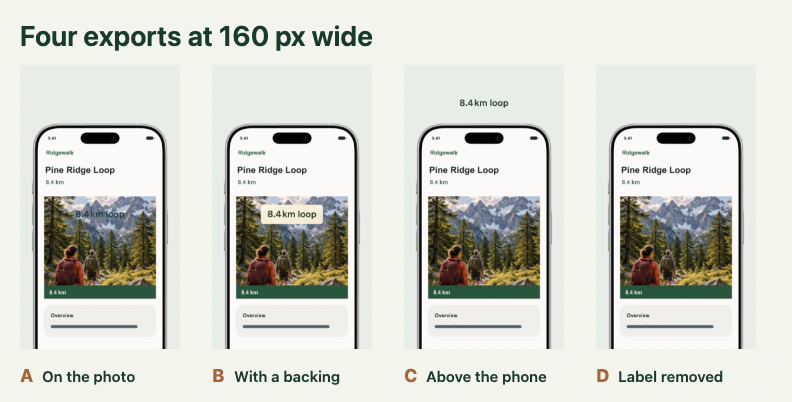
In the thumbnails, A's label blends into the shaded rock. B and C still read as a line of text. In D, the distance in the UI is hard to make out, and the photo carries the board on its own.
Choosing between the margin and no label
B solves contrast but costs photo space. If the route length is the reason this screenshot exists, C gives the label room without touching the picture. If the picture is the hook and the UI already says enough, use D. A only works when the area behind the text is plain and contrasting, and a forest ridge rarely is.
A transparent label lets the photo show through. Google Play accepts the finished screenshot as a JPEG or a 24-bit PNG without alpha. See Google Play's screenshot requirements.
A quick check before you upload
- In the side panel, open Badges and choose the general feature template that shows "Works offline." Edit the title, clear the subtitle, choose no icon, and toggle Transparent background. That gives you version A.
- Use Copy to selected artboards to give the selected boards an independent copy at the same position.
- Look at the label area at full size. If the text crosses busy or similar-colored detail, change the badge background to get B, or drag the badge to blank space to get C. Start C from A so position is the only change.
- Make a copy with the label removed to get D.
- Resize copies of the exported images to 160 pixels wide and view them side by side. Can you read the distance? Can you still see the ridge?
- Keep the version that makes the route length or the scenery easiest to pick out, depending on which you want to show.
To compare all four boards yourself, download the editable Ridgewalk sample project, unzip it, and open the JSON file using Open JSON project (the folder icon) in the screenshot editor.
Ready to design your store screenshots?
Try AppShotMaker and turn raw captures into store-ready screenshots in minutes.