
Table of contents
- Quick nav
App Store Creative Assets: A Practical Guide to Search Artwork, Headers, and Screenshots
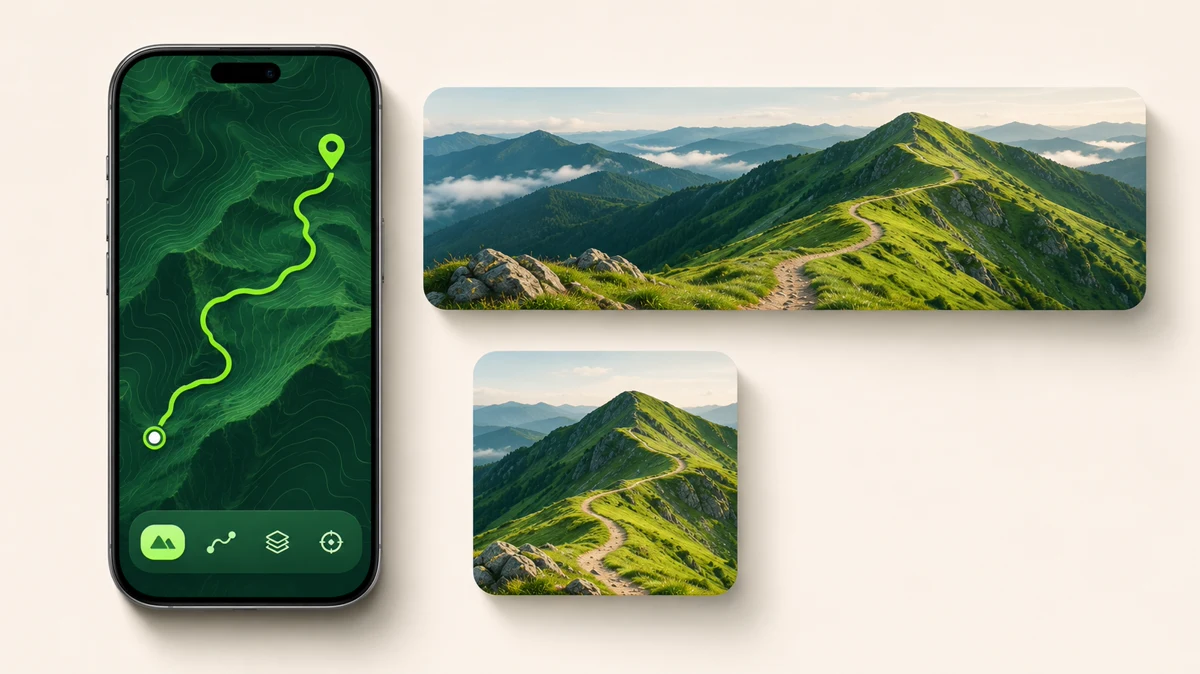
Someone searches for an offline hiking map and sees your app. The artwork makes a route easy to spot. They open the product page, where a ridge trail puts that route in context. The first screenshot then shows how to save a map for the trip. Each image answers a different question and carries the same promise through the listing.
Apple launched Creative Assets and the updated Asset Library in October 2026. On iOS 27 and iPadOS 27 or later, these optional images and videos can appear in places such as the product page header and search results. They give you room to establish a brand or setting alongside screenshots that show the experience inside the app. Apple’s release announcement · App Store Connect asset management
Give each placement a question to answer
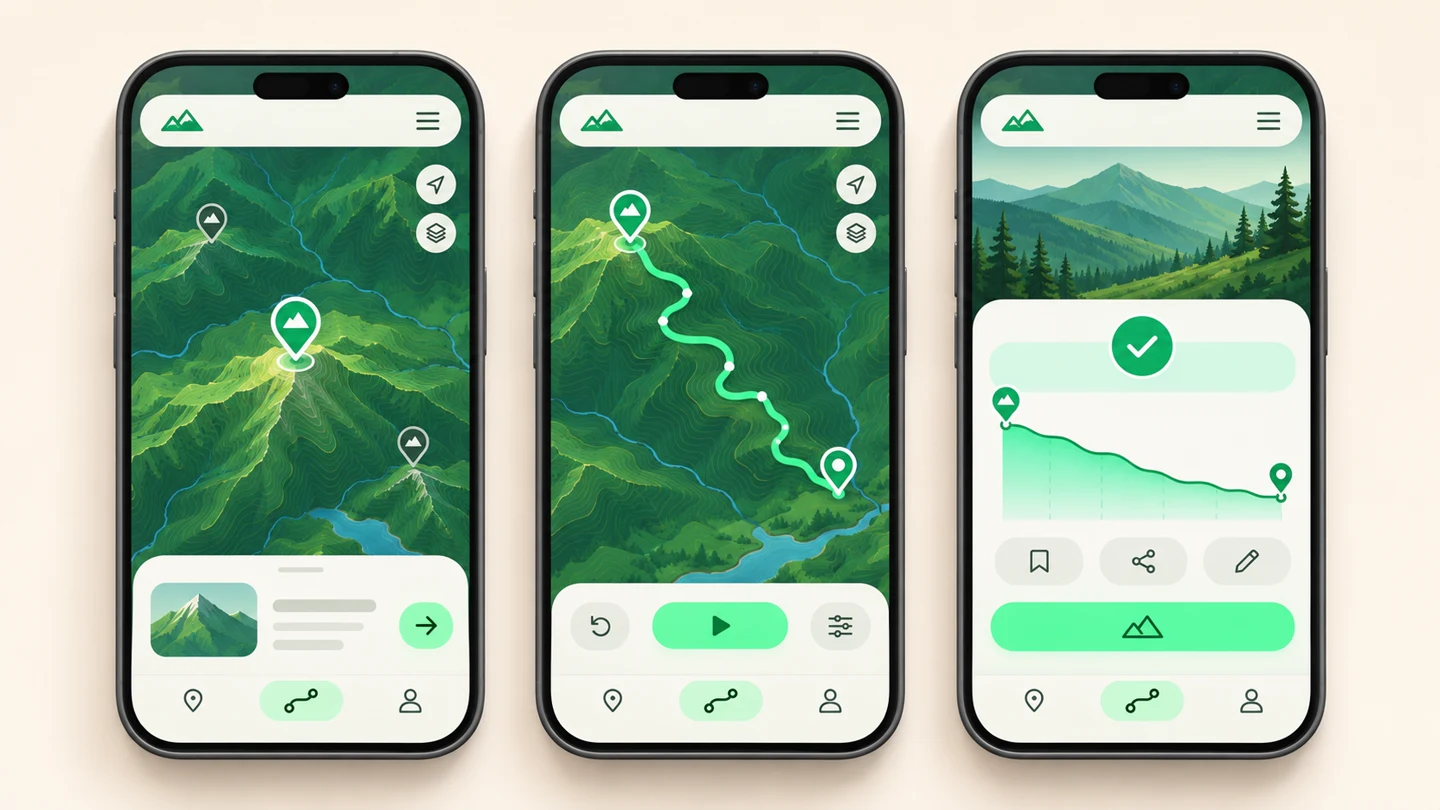
Consider a fictional trail planner called Ridgeway. Its promise is to save a route at home and follow it without reception. The illustrations below are concept mockups. Use captures from your actual app for the screenshots you submit.
| Placement | What the visitor needs to know | What Ridgeway shows |
|---|---|---|
| Search results artwork | Can this app solve my problem? | A legible route on the map and a clear offline download state |
| Product page header | Does it fit the kind of hiking I do? | A trail climbing a ridge, with the main visual inside the art safe area |
| Product page screenshots | How does it work, and what will I get? | Choose a destination, plan the trail, and open the saved route |
| App preview | What does the interaction feel like? | A recording of saving a map and opening the saved route offline |
Look at your search art at thumbnail size. When the scenery dominates, crop tighter around the route or bring the map forward. In the header, one strong subject can carry the outdoor setting. Use the first screenshot to show exactly how someone gets the result those images suggest. Apple’s asset best practices
Start with universal artwork when the same composition works twice
For a first release, try one 16:9 universal PNG. Keep the key artwork inside the template safe area, extend the background across the canvas, and preview it in both placements. A single asset is easier to localize and refresh when it communicates clearly in both views.
Make dedicated versions when each placement needs a different crop or emphasis. Ridgeway’s wide header can show the full ridgeline. In search, a tighter frame makes the route and offline state recognizable at a glance. Keep the same color and line treatment, then recompose the artwork to fit each canvas.
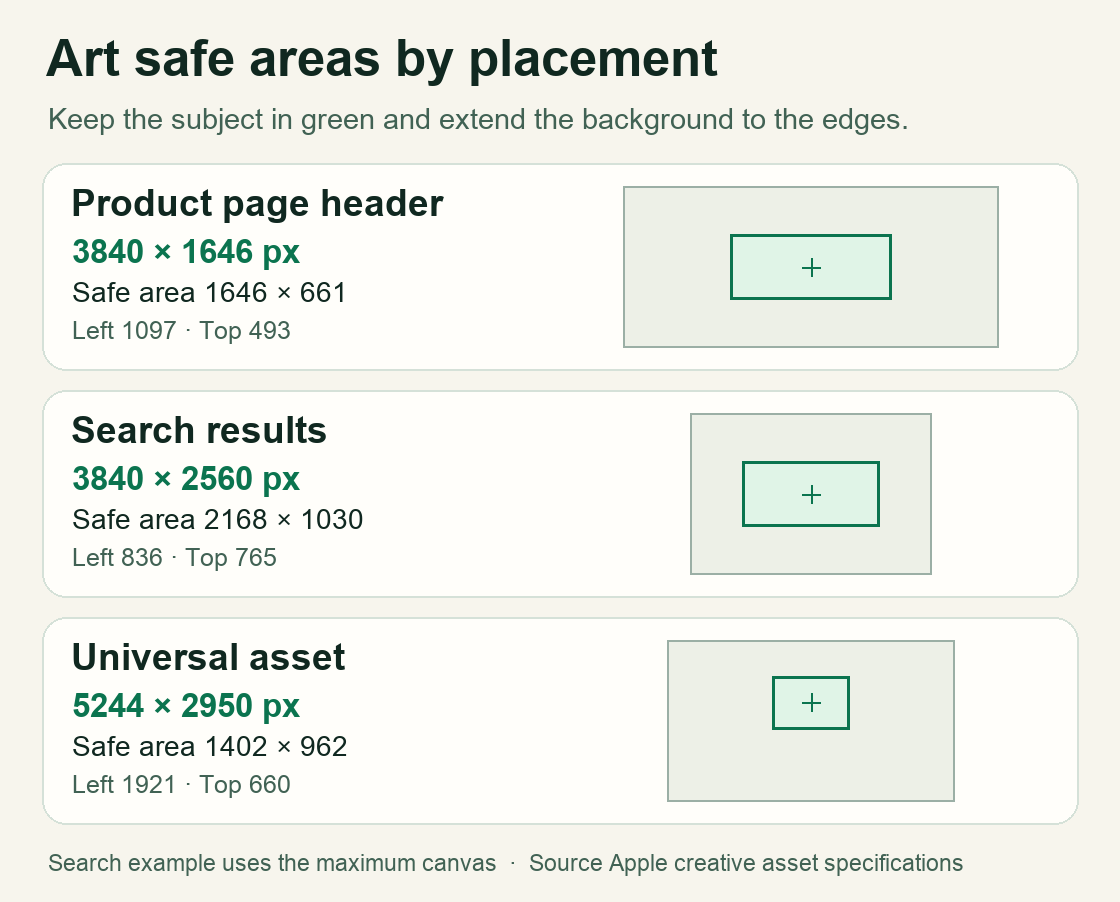
| Image placement | Canvas dimensions | Format |
|---|---|---|
| Product page header | 3840 × 1646 px (21:9) | PNG |
| Search results | 1920 × 1280 to 3840 × 2560 px (3:2) | JPG, JPEG or PNG |
| Universal asset | 5244 × 2950 px (16:9) | PNG |
Apple’s current specs require opaque images. On the universal canvas, the art safe area measures 1402 × 962 px and sits above the canvas midpoint. A composition that looks balanced in your editor can still lose the subject in one placement. The search example in the diagram uses the maximum canvas size. Download the matching template for your file and verify the crop in App Store Connect. Apple’s creative asset specifications · Apple’s design templates
If you choose video, preview it with the sound off. Search results play muted, while people can enable sound on the product page. Both placements loop, and both accept a 5–30 second video at 30 or 60 fps. On a route planner, a complete drawing motion and a readable opening and poster frame are enough to show the idea. Apple’s creative asset video specifications
Get the artwork reviewed ahead of release day
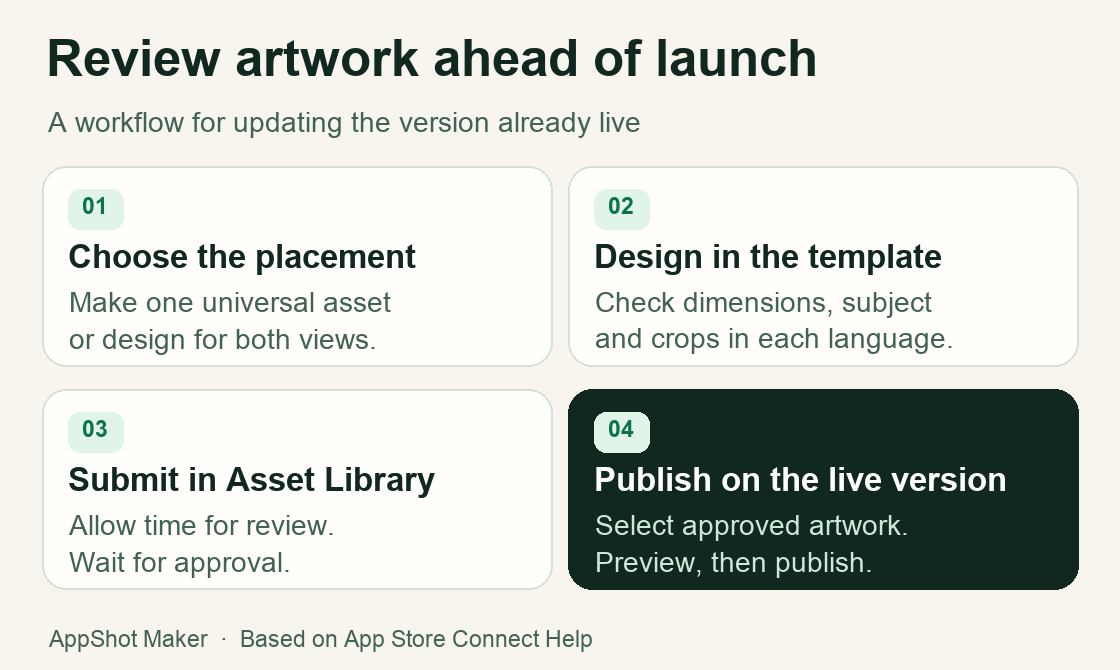
For a new app version, assign the files under Header and Search Results in App Store Connect. Preview both placements before submitting the version. To refresh an app that is already live, submit Creative Assets separately in Asset Library. After approval, open the current live version, choose a compatible asset, and publish the change. A universal asset can serve both placements when you enable the reuse option. Apple’s upload and update instructions
- Preview the smallest useful view. Compare iPhone and iPad, portrait and landscape, every supported language, and Dark Mode. You should be able to identify the subject before reading the caption.
- Localize the outcome. “Follow your route offline” is more specific than “Advanced maps.” If the localized phrase crowds the frame, shorten it or use artwork without text and explain the benefit in a real screenshot.
- Keep the artwork current. Apple’s best practices advise leaving out specific prices and discounts, website addresses, other platforms’ logos, and unverifiable accolades. A seasonal landscape can communicate the theme with fewer details to maintain. Apple’s asset best practices
Test the header with the screenshot set held constant
For Ridgeway, the question could be whether visitors respond better to the hiking experience or to the planning interface. Put the ridge photograph in A and the route map in B. Keep the icon, screenshot order, app copy, and test language consistent.
In Product Page Optimization, use Header and Search Results to configure the artwork for your treatment. Use App Analytics to review the conversion estimate and Apple’s confidence indicators before choosing a winner. Log a new version or a marketing push during the test so you can interpret unexpected changes. If traffic is sparse, start with a legibility check at actual browsing size and run the store test once you have enough exposure to learn from it. Apple’s treatment setup · Product Page Optimization overview
Frequently asked questions
Do I need a Creative Asset if I already have screenshots?
Creative Assets are optional. Make sure the first screenshot communicates the core benefit. Once that is clear, a universal asset can give search visitors and product page visitors a recognizable visual.
Will my universal header automatically appear in search results?
Choose the option to reuse the header in search results when assigning a compatible universal asset. You can also assign dedicated artwork when the two placements need different compositions. Apple’s asset management instructions
Can I change a live header without releasing a new app version?
Yes. Select a compatible, approved asset from Asset Library for the live version and publish the update. If the replacement still needs approval, submit it independently through Asset Library first. Apple’s live asset update instructions
Start with the screenshot that shows your strongest benefit in use. Carry its colors and visual cues into the search art and the header. Open AppShot Maker’s screenshot editor · Check App Store screenshot sizes · Read the screenshot conversion guide
Ready to design your store screenshots?
Try AppShotMaker and turn raw captures into store-ready screenshots in minutes.