
Table of contents
- Quick nav
Same preview video for App Store and Google Play?
The short answer: share the story, not the file
If you ship on iOS and Android, the tempting shortcut is to ask whether a same preview video for App Store and Google Play will pass both stores. Almost always, you can share a storyboard—and you should still export two files.
Apple treats an App Preview as an optional slot in App Store Connect: the file must be 15–30 seconds, it has to use a short list of accepted pixel sizes, and you upload an .mp4, .m4v, or .mov. Google Play is a different pipe: the Main store listing accepts a YouTube URL only, not an MP4. Autoplay, when it happens, is usually the first 30 seconds muted, and the cover is your 1024×500 feature graphic, not a frame from the video.
The frame size is the part people miss. For current iPhones, Connect accepts 886×1920 portrait (about 9:19.5). Play’s common portrait size is 1080×1920 (9:16). Drop the Apple file onto YouTube and paste the link into Play Console, and you will often get side letterboxing. Play’s official page is explicit: do not leave black bars on either side of a portrait video. The other way around fails too: 1080×1920 is not an accepted size for current iPhones, so the upload is rejected.
The tables below were checked against the official help pages on 14 November 2026. AppShot Maker only exports files in your browser. It cannot upload to App Store Connect, YouTube, or Play Console. To make the two cuts, use App Preview Video Maker and switch Export size once.
Official rules, checked 14 November 2026
| Item | App Store Connect | Google Play |
|---|---|---|
| Required? | Optional; up to 3 per device size and language | Optional; 1 per store listing |
| What you submit | H.264 .mov / .m4v / .mp4, or ProRes 422 HQ .mov | A YouTube URL (not a playlist, channel, or timecode link) |
| Length | 15–30 seconds | No hard min or max. First 30 seconds may autoplay muted; reach the core in the first 10 seconds |
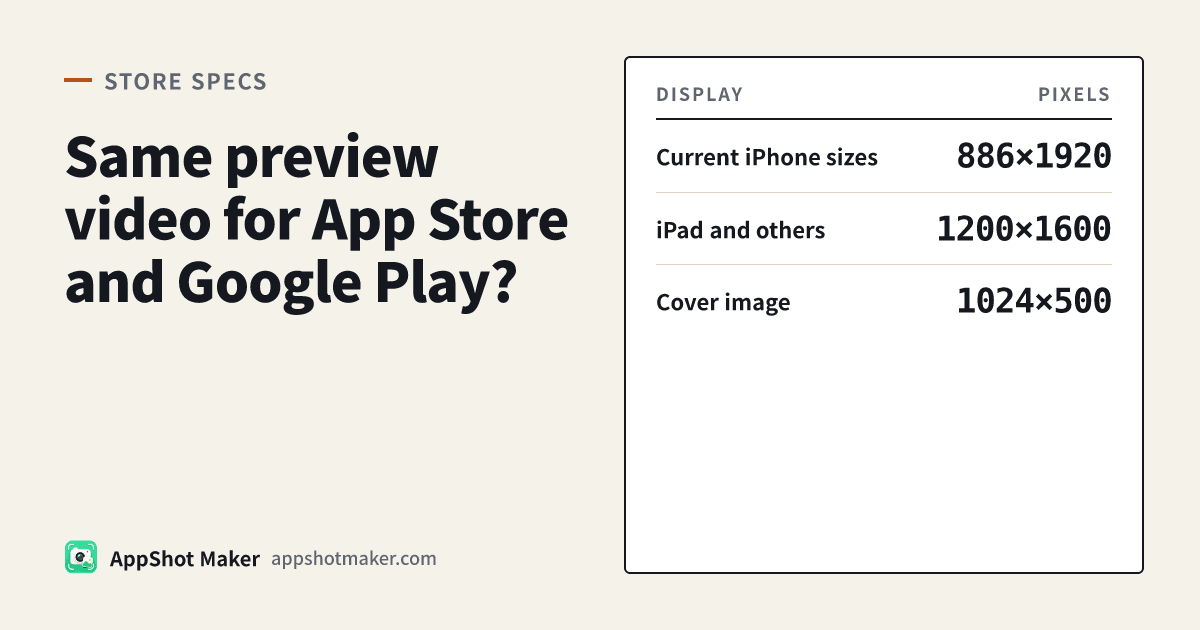
| Current iPhone sizes | 886×1920 or 1920×886. Do not upload screenshot pixels (1179×2556, 1320×2868) as the video | Portrait or landscape; no side black bars. This site’s Play presets: 1080×1920 / 1920×1080 |
| iPad and others | iPad 1200×1600 / 1600×1200; Mac and Apple TV 1920×1080; Vision Pro 3840×2160 | No separate iPad preview slot |
| Encoding and limits | H.264 10–12 Mbps, ≤30 fps, stereo AAC 256 kbps (44.1 or 48 kHz), 500 MB max | Embeddable, public or unlisted, not private or age-restricted, ads off |
| Cover image | Poster frame in Connect; default ~5 seconds | 1024×500 feature graphic (not the YouTube thumbnail) |
| Where it appears | Before screenshots by default. A different aspect ratio moves it to A Closer Look (查看细节 (View details) on the Chinese product page) | Before screenshots; play button sits on the feature graphic |
| Processing / languages | Up to ~24 hours. A missing localization uses the next best language | Localize UI, captions, and audio per market |
Sources: Apple App preview specifications and App Previews, plus Google Add preview assets to showcase your app. Screenshot wells are unchanged: the required iPhone well is still Dynamic Island medium at 1179×2556 or 1206×2622; 6.9-inch large-display sizes stay optional. Those numbers are for screenshots, not the preview video.
Why 886×1920 is a poor Play file
886÷1920 is about 0.461 (roughly 9:19.5), the same tall family as the current iPhone screenshot wells. 1080÷1920 is 0.5625, a standard 9:16. The gap is a crop or a letterbox, not a few leftover pixels.
Drop 886×1920 into a 9:16 player and Fit (letterbox) draws bars on the left and right—the case Play tells you to avoid. Fill (crop) trims the top and bottom, which can clip captions or the UI you meant to show. Landscape does not match either: Apple accepts 1920×886 (19.5:9) and Play commonly uses 1920×1080 (16:9), so the bars move to the top and bottom. Even for a landscape game, export two sizes instead of stretching one file.
Play also recommends that at least 80% of the video show the real in-app experience. Apple says previews should use footage captured on a device and show only content from inside the app—no hands or device body. You can share a storyboard; still export two frame sizes.
When one storyboard is enough
| Your situation | What to do |
|---|---|
| iOS and Android look about the same | One 15–30s storyboard; export twice: Apple 886×1920 or 1920×886, Play 1080×1920 or 1920×1080 |
| Android navigation or home screen clearly differs | Do not reuse the iOS recording. Play wants the real app |
| End card says “Download now”, shows a price, or claims #1 | Play advises against CTAs and price or ranking claims; Apple also says not to include specific prices. Fix the copy, then export both sizes |
| Only portrait screenshots, but you exported a landscape preview | That preview moves to A Closer Look. Match the screenshots’ aspect ratio to stay in the main row |
| GIF or a device-framed demo as the preview | A GIF is not a valid App Store preview. Frames and fingers also conflict with “stay inside the app” |
One storyboard and two aspect ratios is the honest shortcut.
Export two cuts in this site’s tool
Open App Preview Video Maker. It turns 3–8 PNG, JPG, or WebP screenshots into a local slideshow with optional captions and crossfades, scales the cut to 15–30 seconds, and encodes an H.264 MP4 in the browser with silent stereo AAC (48 kHz, 256 kbps) via open-source mediabunny. Nothing is uploaded.
- Drop your shots onto Click or drop 3–8 screenshots (minimum 3, maximum 8). Drag the thumbnails to reorder, or click Sort by name.
- Fill in Caption (optional — important when muted) and Slide length (seconds; scaled to total on export) as needed. Store pages often autoplay muted, so put the message in the caption.
- Set Export size to iPhone portrait 886×1920 first (or iPhone landscape 1920×886, or iPad portrait 1200×1600). Keep Video length between 15 and 30 seconds, and click Equalize slide lengths if you want even timing.
- Choose Fit as Fit (letterbox) or Fill (crop), and set Background. If the ratio does not match, letterbox shows the background and fill crops the picture. For Apple, do not change the official canvas just to make the frame look “full.”
- Check Live preview so captions stay readable, then click Export MP4. The checklist confirms H.264, stereo AAC, 30 fps or less, and a 15–30 second duration. The file is named like
app-preview-886x1920.mp4. - Do not paste that file into Play. Change Export size to Play/YouTube portrait 1080×1920 or Play/YouTube landscape 1920×1080, click Export MP4 again, and you get
app-preview-1080x1920.mp4. Upload it to YouTube as public or unlisted, embeddable, with monetization off—not private or age-restricted, and without a timecode in the URL. Paste the link into the Main store listing Graphics section. For the Play cover, export a 1024×500 graphic from the Feature Graphic maker.
Build still screenshots in the screenshot editor at the required iPhone well of 1179×2556 or 1206×2622; other sizes are in the screenshot size chart. Do not treat 886×1920 as a required screenshot size, and do not upload a 1320×2868 shot as the preview video.
What this tool cannot do
Treat it as a local draft machine for frame size, duration, and muted captions—not the official submission form.
- It does not record a device. Apple asks for footage captured on a device; a QuickTime capture from a real iPhone is still the safer official cut. A slideshow is useful for checking size and captions, not a guarantee of approval.
- It cannot upload to App Store Connect or set the poster frame (default about 5 seconds; changing the poster frame on an already approved preview means submitting that preview again). It also cannot upload to YouTube or paste a URL into Play Console, or check whether ads are off.
- The presets do not include iPad landscape 1600×1200, Mac or Apple TV 1920×1080, or Vision Pro 3840×2160, and there is no music library. You need a browser that can encode H.264 and AAC with WebCodecs (recent Chrome or Edge). If it cannot, Image to GIF is only a motion demo, not a valid App Store preview. The App Store for iMessage does not support app previews; that limit is Apple’s.
For the Apple pixel table, see App Store preview video resolution specs. For YouTube URL rules, see Google Play promo video requirements. If you are still deciding whether to make a video, start with when to make an app preview.
FAQ
Can I upload the 15–30 second Apple MP4 to YouTube and use it on both stores?
You can give Apple one file and YouTube a second file from the same storyboard. Do not assume the 886×1920 file will play cleanly on Play—side bars on a portrait video are something Play tells you to avoid. The second export is one change to Export size.
Does Play have a 15-second minimum or a 30-second maximum?
The official page does not fix a duration. It notes that the first 30 seconds may autoplay muted, and it asks you to keep the video short and reach the core experience in the first 10 seconds. To share one storyboard, stay inside 15–30 seconds. If Play needs a longer walkthrough, that is a third file—do not upload the long version to Connect.
Is the poster frame the same thing as the feature graphic?
No. Apple’s poster frame is a still from the video, chosen in Connect. Play’s cover for a regular preview is the 1024×500 feature graphic.
Do I still need a device recording after I export the slideshow?
For an internal size and caption check, this tool is enough. For an official App Preview, follow Apple’s guidance and capture on a device, and keep device bodies, fingers, and prices out of the frame. This site cannot run review or submit a version for you.
Ready to design your store screenshots?
Try AppShotMaker and turn raw captures into store-ready screenshots in minutes.