
Table of contents
- Quick nav
Dynamic Island in App Store screenshots: black mask or clean shot
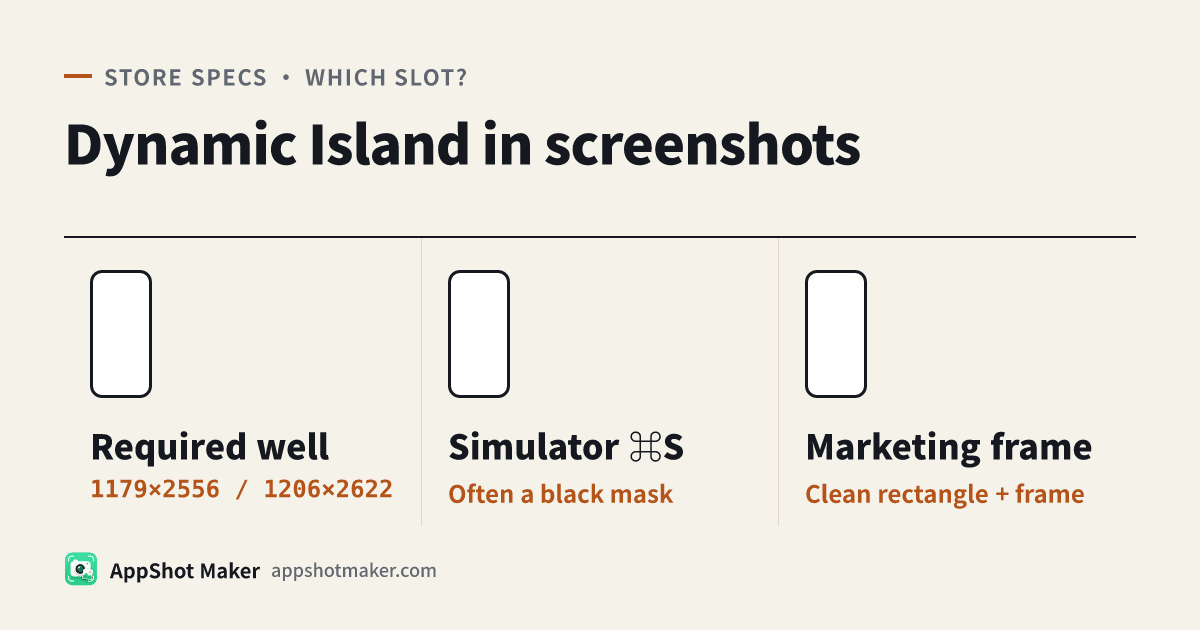
Three problems that get bundled into one sentence
Search results for Dynamic Island in App Store screenshots pull in two opposite jobs: how to capture a Simulator shot without the island, and how to show it. App Store Connect adds a third message: you must upload a screenshot for iPhone with Dynamic Island (medium display). Those are not the same task.
This page was checked against Apple’s Screenshot specifications on 11 November 2026. The official table lists accepted pixel sizes, .jpeg / .jpg / .png formats, and a hard rule that images cannot include alpha or transparency. It does not require a visible island, and it does not treat a black pill as a review item.
Hold on to three facts:
- The required slot is a pixel well. Connect checks the file dimensions against the medium Dynamic Island sizes, not for a drawn cutout.
- A normal screenshot on a physical iPhone is a full rectangle. The island is a hardware cutout, so it does not punch a hole in the saved image. A Live Activity is the exception: when iOS is drawing that software UI, those pixels appear in the capture.
- If you want a marketing image that looks like a phone, the cutout usually comes from a device frame. Use Device Mockup for a framed PNG, or the device-look controls in the screenshot editor when you also need titles.
If the console error is “You must upload a screenshot for iPhone with Dynamic Island (medium display),” you have a size problem — use the medium-display fix. File locations, resizing, and flattening alpha stay in the iOS Simulator export guide. This article only covers the black mask, the missing pill, and when a frame is the right next step.
Required sizes checked today
| Item | Official wording (checked 11 November 2026) |
|---|---|
| Required iPhone slot | At least one screenshot for iPhone with Dynamic Island (medium display): 1179×2556 or 1206×2622 (portrait or the swapped landscape pair) |
| Device names in that well today | Includes iPhone 18 Pro, 17 Pro, 17, 16 Pro, 16, 15 Pro, 15, and 14 Pro |
| Dynamic Island (large display) | Optional. Accepted sizes: 1260×2736, 1290×2796, or 1320×2868. iPhone 18 Pro Max and iPhone Air are listed in this existing well — not a new required slot |
| iPad (if the app supports iPadOS) | Required 13-inch display: 2064×2752 or 2048×2732 |
| Format | jpeg, jpg, or png; no alpha and no transparency |
| Display scaling | If the UI is consistent across sizes and localizations, you can supply the highest required resolution and let App Store Connect scale downward |
Do not invent an in-between canvas such as 1200×2600 to “make room for the island.” Connect wants an exact size from the table. “Close enough” is rejected, with or without a black pill.
Why the island appears in some captures and not others
Physical device: the cutout is hardware
A screenshot on a physical iPhone is a complete rectangle. The status-bar region is ordinary pixels: no missing bite, and by default no black island printed into the file. The cutout is in the display, not a mask stored with the bitmap.
The exception is a Live Activity (a timer, now-playing session, turn-by-turn guidance). That UI is drawn in software, so it appears in the capture when it is actually running. If that is the point of the shot, run it on a Dynamic Island device and capture it — do not paste a static glyph over the status bar and call it a live state.
Simulator: the capture command changes the mask
Developers consistently report a split between capture commands. Treat the table as a working hypothesis and re-check it on your Xcode version; menu labels move around.
| Method | What people usually get | When to use it |
|---|---|---|
| Simulator menu File → Save Screenshot, or ⌘S | The island, notch, and rounded corners are often a black mask | Use only when you want that masked chrome. As a store shot it often looks like a dirty status bar |
| Simulator menu Device → Trigger Screenshot | Lands in Simulator Photos. Many people get a full rectangle with no black pill | Better store master. The file may not be on the Desktop — check Photos or the device data folder |
Terminal: xcrun simctl io booted screenshot | Default masking depends on the Xcode version; some releases accept --mask | Convenient for scripts. Run xcrun simctl io help and read the flags before you automate |
On --mask: a commonly cited value is --mask=black, which fills the cutout with black. Confirm flags with xcrun simctl io help on your machine rather than treating one value as an official, unchanging requirement. Two points are solid: a mask that leaves transparent pixels is not an App Store upload (official specifications forbid alpha), and a black pill is not “closer to compliance.” For the required well, a clean rectangular UI shot is usually the right master. If you want the hardware look, add a real device frame instead of leaving a black lozenge in the status bar.
⌘S also does not follow the window scale. Pick the correct Simulator model, then inspect the file with sips -g pixelWidth -g pixelHeight your.png. Do not stretch a window-sized capture until the numbers look close.
Pick the job first, then pick a capture method
| Your job | Do this | Avoid this |
|---|---|---|
| Fill the required medium Dynamic Island well | Capture on a medium-display model (today that includes iPhone 18 Pro) at 1179×2556 or 1206×2622, flatten alpha, and show a real screen | You do not need to draw the island, and you should not hand-paint a pill to “look realistic” |
| Get a clean UI master, then add titles | Prefer a full-rectangle capture, confirm the pixels, and drop it into the screenshot editor | Do not keep a ⌘S black mask under your headline |
| Ship a marketing image that looks like a physical phone | Start with a rectangular master, then frame it in Device Mockup or the editor’s device-look tab | Do not drop an already-masked Simulator shot into a frame — the cutout will stack twice |
| Show a Live Activity | Run the activity on a Dynamic Island model and capture that state | Do not composite a static island graphic and present it as a live session |
Whether a framed shot belongs on the listing depends on the store. Apple, Google Play, and the major China Android stores do not treat device frames the same way — see the device-frame rules. If you are unsure, keep a full-bleed, unframed rectangular set ready.
What the on-site tools will and will not do
The editor can export at store pixel sizes. It will not generate a live Dynamic Island inside your source capture. The cutout on a device frame is part of the frame asset, which is separate from the App Store Connect pixel well.
A practical finish:
- Open a real screen on a medium Dynamic Island device or the matching Simulator, and capture a full rectangle.
- Confirm the file is
1179×2556or1206×2622. If it is not, go back to the correct device rather than stretching to a nearby number. The Simulator export guide covers exact resizing. - For titles or a background, drop the rectangle into /en/preview. Under Size & export, choose the iPhone 6.3″ preset (1206×2622) or type 1179×2556 as a custom size.
- Turn on a device frame only when the design should show the phone body. Export again and confirm the final PNG has no alpha channel.
- Double-check the well in screenshot sizes, then run the file through screenshot check. That tool looks at pixels and format — it does not decide whether the island is visible.
The large Dynamic Island well (where iPhone 18 Pro Max sits today) is still optional. If you upload only the required medium set and the UI is consistent, Connect can scale downward — see screenshot scaling.
Checklist before you upload
- The required well is exactly
1179×2556or1206×2622, not a nearby custom size - The upload file has no alpha channel
- For the required slot only, you did not leave a meaningless black pill in the status bar
- For a framed marketing shot, the cutout comes from the device frame and is not stacked on a masked capture
- If you show a Live Activity, it was actually running when you captured
- The status bar is clean: no test notifications, debug badges, or odd battery states. See the status-bar guide
A black Dynamic Island in a Simulator screenshot is usually a capture-mask problem, not Apple asking you to draw the hardware. Match the required pixels first, then choose a clean master or a framed marketing shot. Do those two jobs on purpose, and the black mask stays in the Simulator instead of on the product page.
Ready to design your store screenshots?
Try AppShotMaker and turn raw captures into store-ready screenshots in minutes.