
Table of contents
- Quick nav
App Store screenshots localization: inherit or upload?
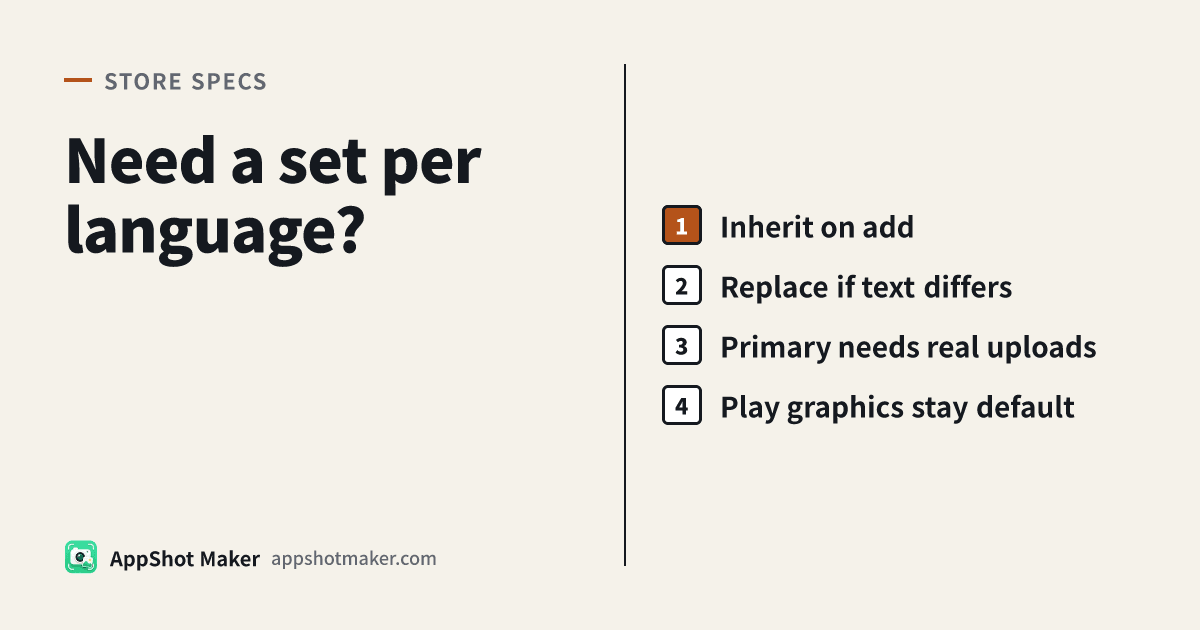
The short answer: you do not need a new set for every language
The usual question after you add Simplified Chinese, Japanese, or one of the eleven metadata languages Apple opened on 31 March 2026 is whether App Store screenshots localization means a full new screenshot set every time. It does not. It also does not mean you can ignore screenshots forever.
Apple's Localize app information help page is explicit: when you add a language, screenshots and most properties default to those of the primary language, except description and keywords, which you must fill in yourself. Google Play splits text and graphics: Translate and localize your app states that if you add text translations without localized graphic assets, the listing shows graphic assets from the default language.
This page is a routing table: when inheritance is enough, when you must upload a replacement set, and why derived screenshots do not count if you later change the primary language. Figures below were checked against the official help pages on 13 November 2026. AppShot Maker only exports files in your browser. It cannot add a language or submit a localization in App Store Connect or Play Console.
What is copied when you add a language
Store metadata languages are not the same as the languages you add to the app binary in Xcode. Adding a language in Connect changes what customers see on the product page. It does not translate in-app strings. Apple also notes that you can manage languages only when the app status is editable.
| Field | What happens when you add the language | What you should do tonight |
|---|---|---|
| Screenshots and app previews | Default to the primary language | Keep them if the UI and on-image copy match the primary language; replace them when either changes |
| Description and keywords | Not copied | You must write them. Leaving them empty makes that localization incomplete |
| Name, subtitle, privacy policy URL | Entered under App Information for that language | Do not assume the version page covers the shared fields |
| What a customer actually sees | Language setting, storefront support, the localizations you added, and primary-language fallback | If nothing matches, Apple uses the next most relevant localization, then the primary language |
If you delete a language, countries or regions that were showing it revert to the primary language. App previews follow a similar rule: if you do not provide a preview for a language, the product page shows the preview in the next best available language.
Screenshot specifications are unchanged today: at least one and up to ten screenshots per device size, in .jpeg, .jpg, or .png, with no alpha channel or transparency. The required iPhone well is still Dynamic Island medium display (1179×2556 or 1206×2622), not the optional 6.9-inch large well. If the app supports iPadOS, you also need iPad 13-inch shots (2064×2752 or 2048×2732). Display scaling applies across localizations too: if the UI is consistent across device sizes and languages, you only need the highest required resolution. Apple Watch has an extra hard rule: you must use the same screenshot size across all localizations.
Decision table: inherit, replace, change the primary language, or rely on Play fallback
| Situation | What to do | Easy mistake |
|---|---|---|
| You only added description and keywords; the screenshots have no marketing type, and the UI is still the primary language | Keep the inherited screenshots. You do not need a set for all 50 languages | Inheritance is the official default, not a shortcut |
| The shots have English or translated captions baked in | Export and replace screenshots for that language | Neither store translates text that is already part of the image |
| The app itself ships in that language | Recapture the real UI, then export captions on top | Do not translate the caption bar while leaving the UI in another language |
| You want this language to become the primary language | First manually upload screenshots for that language on every supported platform, get App Review approval, and match the current primary sizes; change the primary language on a later update | Screenshots derived from another localization do not count. If you have custom product pages, each page also needs screenshots in that language |
| You translated Play listing text but did not upload localized graphics | Copy can be translated; screenshots and the feature graphic stay on the default-language set | Play may also offer an automated translation of listing text for languages you have not added (with a notice). That does not rewrite pixels in your screenshots |
Changing the primary language is a two-step job. Officially, the language must already have been added on a previous version and approved by App Review. The screenshots must be files you actually uploaded and that have been approved — inherited ones are not enough. Upload and wait for approval first, then switch the primary language in a later update.
On Google Play, keep the publishing floor in mind (official preview assets, checked today): you need at least two screenshots across device types to publish, and you may add up to eight per type. Use JPEG or 24-bit PNG (no alpha). Each side must be 320–3840 pixels, and the long side cannot be more than twice the short side. Play will not scale a screenshot set into another language; a language without its own graphics simply shows the default set.
Eleven new languages does not mean eleven new screenshot sets
On 31 March 2026 Apple added eleven metadata languages in App Store Connect (Bangla, Gujarati, Kannada, Malayalam, Marathi, Odia, Punjabi, Slovenian, Tamil, Telugu, and Urdu), bringing the total to 50 localizations. That is not a request to export eleven new screenshot packs tonight.
Fill in description and keywords for the markets you will actually support. Upload a localized set only when on-image copy or the real UI will change. If you do ship right-to-left screenshots, for example in Urdu, check the layout separately rather than pasting a left-aligned English caption bar. Do not fill all 50 dropdown entries just because they exist — that is how a stray alpha channel or a mismatched size slips into one language.
A first-hand path: export locally, then replace in the console
- In Connect, open the language menu at the top right, add a language from Not Localized, and fill description and keywords first. Shared name and privacy policy URL live under App Information. In Play Console, use Manage translations for text and upload graphic assets separately.
- Only when the screenshots themselves must change, use /en/tools/screenshot-localize to keep one layout and swap caption rows. If you need the official canvas, rebuild the set in /en/preview.
- Run the export through /en/tools/screenshot-check for pixel size and alpha. Localized batches are where a leftover transparent channel usually appears, and neither Apple nor Play accepts alpha in screenshots.
- Back in Connect, select the target language and replace files in App Previews and Screenshots. Do not overwrite the primary-language well by mistake. In Play, upload to that language's localized graphics, not the default-language slot.
- If you only want to see how the name, rating, and screenshot strip sit together, /en/tools/store-preview can export an unofficial mock. It cannot submit assets and is not a real store page.
How this page differs from sibling articles
- Multilingual App Store screenshot generator is about designing once and exporting by locale, not about inheritance in Connect.
- The screenshot localization guide and cultural adaptation cover writing, layout, and whether demo content should change.
- App Store Connect screenshot scaling answers how many device-size sets you need in one language, not how many language sets you need.
This page only answers whether you must re-upload after adding a language, and whether inherited screenshots count when you change the primary language. When you do need new files, go back to the generator and /en/preview.
Takeaway
- New App Store languages inherit screenshots from the primary language. Description and keywords do not inherit.
- Upload a separate set when on-image text or the real UI changes. Stores will not translate pixels.
- Before you change the primary language, manually upload and get approval for screenshots in that language, on every supported platform, at matching sizes. Derived screenshots do not count, and custom product pages need their own sets.
- Play can translate listing text and still show default-language graphics. Automated translation does not rewrite screenshots.
- The eleven languages added in 2026 follow the same routing table. You do not owe a unique screenshot set to every row in the dropdown.
Ready to design your store screenshots?
Try AppShotMaker and turn raw captures into store-ready screenshots in minutes.