
Table of contents
- Quick nav
How to Make an App Store Product Page Header Video (21:9 Loop)
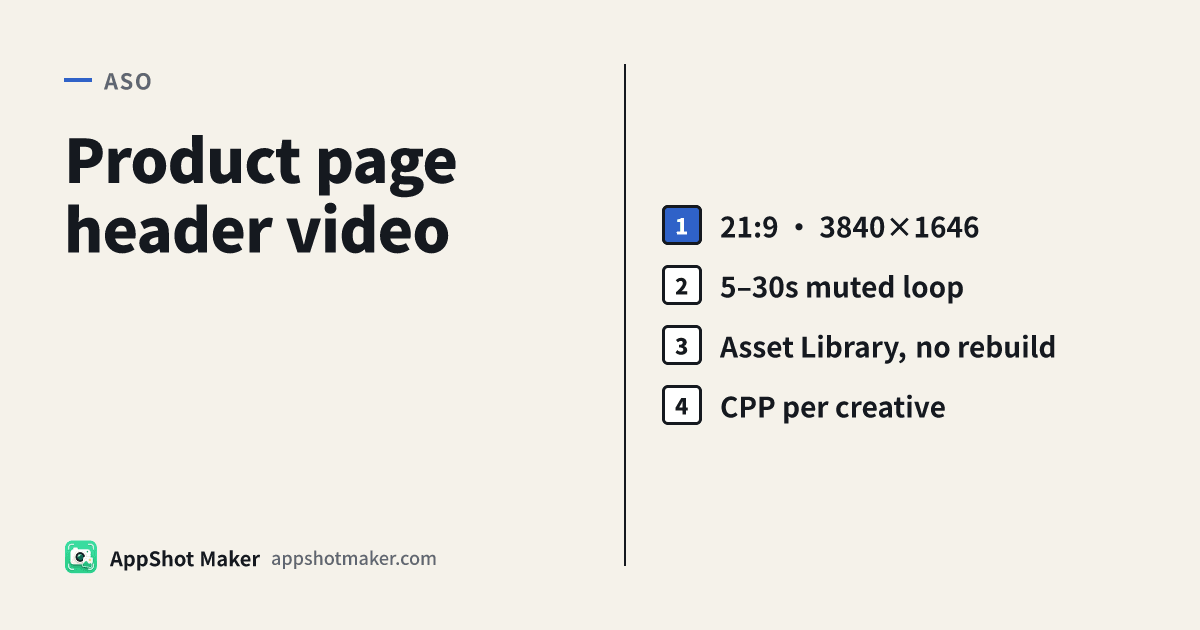
What changed at the top of the product page
On the App Store for iOS 27 / iPadOS 27 and later, you can place a product page header above the icon—an image or a looping video. It is the first visual shoppers see when they land on your page, before the screenshot strip.
This is not the same job as an App Preview:
| Product page header video | App Preview | |
|---|---|---|
| Slot | Top banner on the product page | Device-oriented clip in the screenshot row |
| Frame | 21:9, fixed 3840×1646 | Portrait/landscape device resolutions |
| Content rules | Creative asset: brand, season, new content allowed | Must show the app in use |
| Audio | Muted by default (unmute on product page; search results stay muted) | Sound is common |
| Upload | Creative assets → Asset Library, can ship without a new build | Version / localization preview slots |
For the full image and video size tables, use our creative assets size guide 2026. This tutorial covers only how to produce and ship a conversion-minded looping header video.
The workflow below is adapted from a public tip by indie maker @minosdevs (looping header, muted-first story, Asset Library, different headers per Custom Product Page), cross-checked against Apple’s creative assets specifications and asset management help. We did not build their app; this is a how-to rewrite for makers on this site.
Why bother
- First impression — the header sits above the icon and screenshots.
- Narrative control — screenshots prove UI; the header can sell mood, brand, or a seasonal beat (still under App Review Guideline 2.3.14: relevant, age-appropriate, no concrete prices/discounts, no misleading other-app claims).
- Ad continuity — pair one header per Custom Product Page so a TikTok creative and the store landing share the same look.
- Swap without a rebuild — approved creative assets in Asset Library can replace the live header without submitting a new binary (per Apple’s Asset Library flow).
Spec checklist before you export
For a product page header video, Apple requires all of the following:
- Aspect 21:9, resolution 3840 × 1646 (fixed pixels, not a minimum edge)
- Length 5–30 seconds; 30 or 60 fps
- Container .mov / .m4v / .mp4
- Message readable when muted (search-result video cannot be unmuted today)
- Continuous loop — make the cut seamless if you can
Still images and the 16:9 universal PNG (5244×2950) path are covered in the sizes article; this page stays on video.
Five-step how-to
Step 1: Write a muted-first one-liner
Watch a full loop with sound off. If a teammate cannot restate what the app does in three seconds, fix the board before you polish motion. A simple beat sheet:
- 0–2s: result or brand frame (one short line of type)
- 2–8s: one concrete benefit or scene
- Last second: ease back toward the opening frame for a clean loop
Do not park the only important message in voice-over. Do not put concrete prices or discount copy on the canvas (2.3.14).
Step 2: Compose for 3840×1646 with a centered subject
Headers crop across devices and orientations. Keep logos, characters, and key UI in the center safe area; treat the sides as expendable bleed. Apple’s asset best-practice templates (Figma, Photoshop, and others) mark safe zones—use them.
Before export: no alpha/transparency; confirm 3840×1646, 30 or 60 fps, duration between 5 and 30 seconds.
Step 3: Export a compatible MP4 or MOV
Export H.264 (or another Apple-accepted encode) to .mp4, .mov, or .m4v from your editor of choice. Our App Preview tool targets portrait device preview sizes (for example 886×1920)—do not upload that file as a 21:9 header. Different slot, different canvas.
Step 4: Upload in Asset Library and submit assets alone
In App Store Connect:
- Open the app → Asset Library, or the version page → Product Page Information → Header and Search Results.
- Upload the creative-asset video.
- Submit creative assets for review on their own (Apple: no app-version bump required, and you do not have to declare the final placement yet; review is against your latest live version).
- After approval, assign the asset to the header and save. If the app is already live, publish the approved header swap per Help—no new build.
You can also attach assets to a normal version submission; the library path is better for stocking holiday variants ahead of time.
Use Connect Preview for iPhone/iPad, orientations, and languages before you submit.
Step 5: Map default page + one header per Custom Product Page
A practical pattern from minosdevs’ post: give each Custom Product Page its own header so each paid/social creative lands on a matching store page. Keep an evergreen loop on the default page; attach campaign loops to the matching CPP. See also our CPP guide and Apple Ads screenshot alignment.
For an unofficial layout mock before you ship art, try store listing preview—it is not an official App Store simulator.
Extra tips
- Mute QA — loop twice yourself; have one person watch without audio and paraphrase the offer.
- Loop seam — match color and subject position between last and first frame.
- Divide labor — header = brand/season; screenshots = in-use proof.
- Search results are a different canvas — search video is 3:2 with its own resolution range and cannot be unmuted. Do not force a 21:9 header file into that slot. For one asset in both places, consider the 16:9 universal still path in the sizes guide.
- Test with PPO — product page optimization can compare header creatives before you lock the evergreen cut.
Caveats
- Creative headers appear in the iOS 27 / iPadOS 27+ storefront experience; older clients keep the classic layout.
- Creative assets are not a free pass for competitor bait, fake awards, URLs, or other-store marks.
- Roles: Account Holder, Admin, App Manager, or Marketing typically manage assets.
- Standalone review uses your latest app version as context—keep the story aligned with what ships today.
- Specs and Help pages win over any third-party tip when they disagree; App Review’s decision is final for your build.
How this fits tools on this site
| Need | Go here |
|---|---|
| Pixel tables for header / search image & video | Creative assets sizes 2026 |
| Portrait App Preview (device slot) | App Preview tool |
| Unofficial store-card mock | Store preview |
| Live chart screenshot patterns | Screenshot gallery |
Closing checklist
- Muted-first line → 2. Export 3840×1646 / 21:9 / 5–30s / 30 or 60 fps → 3. Asset Library standalone review → 4. Assign to default or CPP → 5. Preview, then publish.
Always re-check Apple’s Creative assets specifications. For a compact creator-side prompt list, see @minosdevs on X. After your first approved loop, save export presets and a CPP↔header map so the next campaign is a swap, not a rediscovery.