
Table of contents
- Quick nav
How to Screenshot on iPhone Duo (Buttons + Store Sizes)
Two intents hide inside one query
Search Console shows huge impressions for “how to screenshot on iPhone Duo” with almost no clicks—most people want the button combo. A second group actually needs pixel sizes for App Store Connect on the outer vs inner display.
This article covers both: capture steps from Apple’s screenshot help, then the Duo rows from the screenshot specifications checked on 2026-10-30. Important: today’s required iPhone slot is still Dynamic Island (medium display). Duo screenshots are a separate track—Apple states they become required from April 2027 for apps using the iOS 27.1 SDK or later.
We already published Duo store sizes, a Duo mockup walkthrough, and foldable ASO tips. This piece does not redo design theory—it connects capture → which display → which Connect slot.
Capture: same gesture as recent iPhones
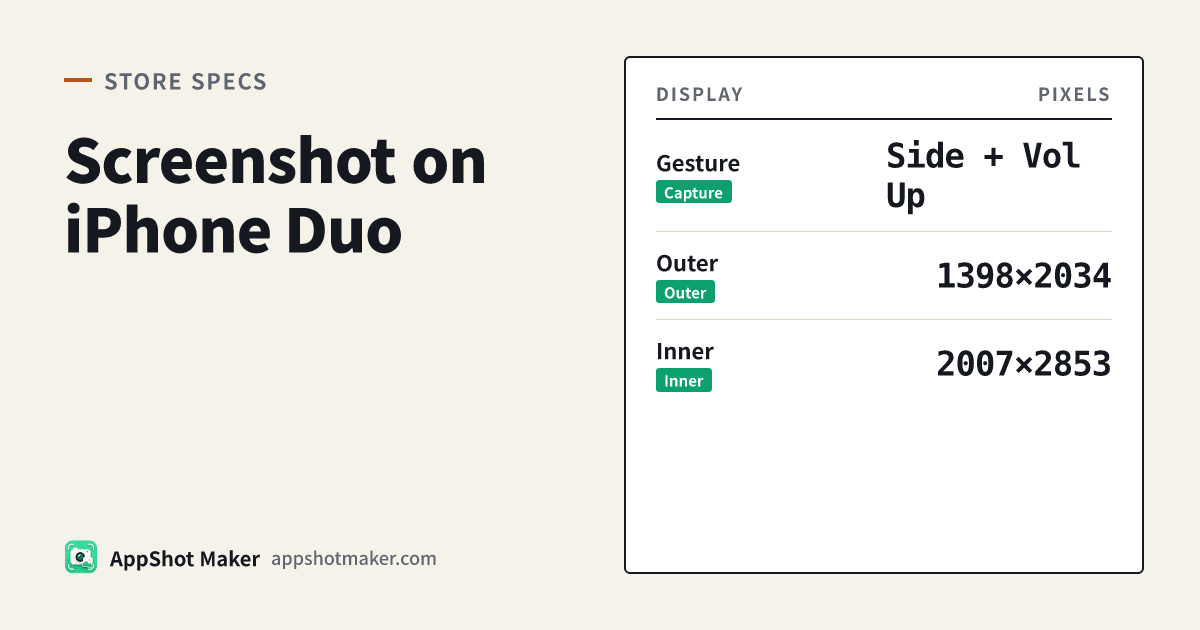
Apple’s guidance for iPhones without a Home button: quickly press and release the Side button and the Volume Up button together (Take a screenshot). Duo uses the same shortcut; the grip changes:
- Open the screen you want (cover display or unfolded inner display).
- Press Side + Volume Up at the same time, then release immediately.
- Use the markup preview or let it save under Photos → Media Types → Screenshots.
When unfolded: volume keys often sit on the top edge, Side on the right. With Dynamic Volume Buttons, which physical key means “up” can change with orientation—the shortcut follows the Volume Up function, not a painted label. Holding Side too long triggers power / Siri instead of a shot.
Fallbacks when you cannot reach both edges:
- Ask Siri to “take a screenshot.”
- AssistiveTouch → Device → More → Screenshot.
Public hands-on reports (useful for listing capture, not Apple’s legal spec) also note: only the active display is captured, and screen recording often stops when you flip between outer and inner—finish a take on one display if you need continuous footage.
What pixel size did you just capture?
From Apple’s table (portrait first):
| Display | Portrait | Landscape | Notes |
|---|---|---|---|
| Duo outer | 1398 × 2034 | 2034 × 1398 | Cover display |
| Duo inner | 2007 × 2853 | 2853 × 2007 | Unfolded display |
| Required iPhone (today) | 1206 × 2622 or 1179 × 2556 | matching landscape | Dynamic Island medium |
Decision table we use when scheduling a ship:
| Goal | Do this |
|---|---|
| Chat / bug report | Capture whichever display shows the bug |
| Ship for review now | Supply Dynamic Island medium first; keep Duo shots as extras or Asset Library stock |
| Prepare for Apr 2027 + iOS 27.1 SDK | Plan inner and outer stories; do not ship only a tiny cover-display crop |
| Marketing mockups | Export PNG → /en/preview for frames; framed art is not the required Connect slot |
Browse all sizes in /en/tools/screenshot-sizes; run /en/tools/screenshot-check before upload so you do not ship alpha channels.
Shortest path from Duo capture to uploadable stills
- Stabilize the UI on the target display (clear noisy notifications).
- Side + Volume Up once; unfold and capture again if you need an inner-display story.
- AirDrop or cable to your Mac, or export from Photos.
- If pixels do not match the Connect well, resize with batch export or the main generator—never assume “inner Duo = required slot satisfied.”
- For whole-page feel before submit, drop finals into Store Listing Preview.
Outer cover vs inner canvas—what to shoot for listings
The cover display fits glanceable stories: notifications, lock widgets, lightweight cover-only actions.
The inner display fits full workflows: primary tasks, Split View, long lists, creation UIs.
Do not randomize outer and inner in one strip. If frame one is a tiny cover calendar and frame two is a pro editor, shoppers think they are looking at two apps. A steadier plan:
- Tell the core value on inner shots that also map to today’s required Dynamic Island medium story.
- Keep 1–2 outer shots for the Duo well or marketing pages.
- For competitive pacing (not copying UI), browse public product pages in the App screenshot gallery.
Quick cleanup before the Mac handoff
Duo captures often include live notifications and carrier junk. Before Connect:
- Enable Focus / Airplane Mode, then reshoot.
- Crop noise or follow the status bar cleanup guide.
- Export JPEG or 24-bit PNG without alpha, then upload.
Pitfalls
Stretching an outer-display shot into a 6.9″ well. Different aspect; looks soft and wrong.
Reading the Duo-optimized badge as “Duo is required today.” Uploading Duo shots can show an optimized badge; required rows are still the Required lines on Apple’s table, with Duo’s mandate dated April 2027 for iOS 27.1+ SDK apps.
Losing recordings when flipping displays. Stay on one display per take.
Treating a still as an App Preview. Previews use accepted video sizes such as 886×1920—see app preview from screenshots.
Simulator note for teams without hardware yet
If you are designing for Duo before you own one, capture from the simulator or design tool at the documented outer/inner pixel sizes, then run the same compliance and mock steps. Hardware screenshots still win for real status-bar chrome and fold shadows, but slot planning does not have to wait for a device in hand—the specification table is public. When hardware arrives, re-shoot the hero frames; keep the storyboard order you already validated in Store Listing Preview.
Bottom line: capture with Apple’s universal Side + Volume Up gesture; upload against the specification table—being able to screenshot on Duo does not replace Dynamic Island medium today.
Ready to design your store screenshots?
Try AppShotMaker and turn raw captures into store-ready screenshots in minutes.