
Table of contents
- Quick nav
App Store screenshots PNG or JPEG: Pick by Store Rules (No Alpha)
Short answer: both ship — the fight is alpha and bytes
People searching App Store screenshots PNG or JPEG are usually stuck on one of two gates:
- Upload reject / red validation — often a PNG that still carries an alpha channel, or a renamed extension that was never re-encoded.
- China Android size caps — OPPO phone shots commonly need under 1MB per file; lossless PNG blows past that fast.
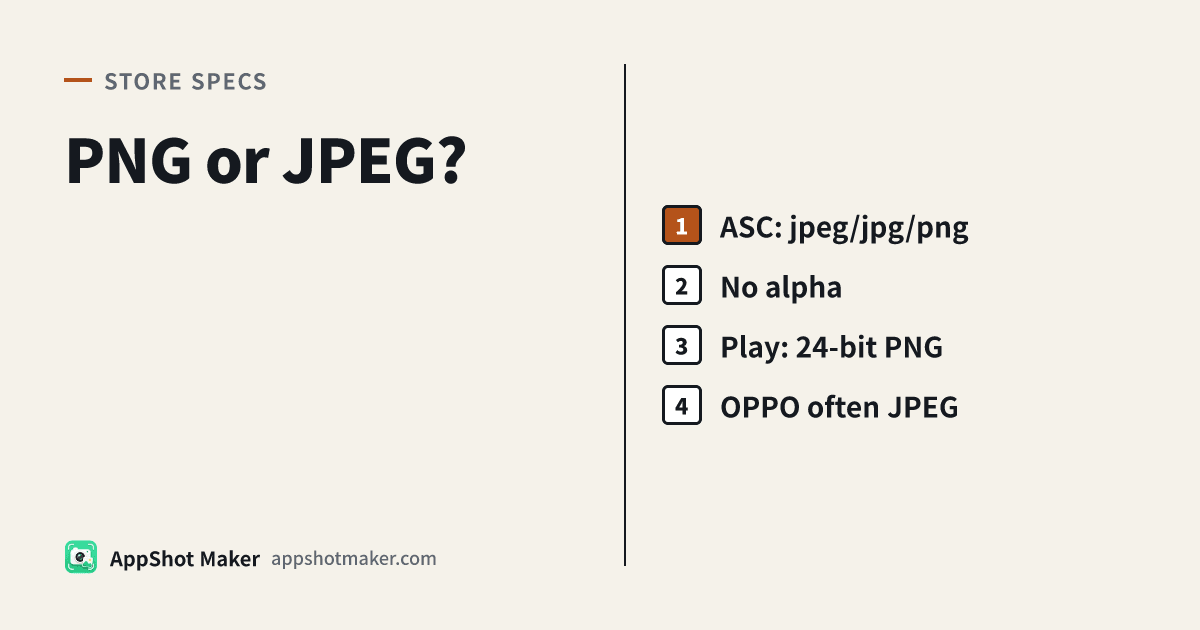
Apple’s screenshot specifications (checked 7 Nov 2026) accept .jpeg / .jpg / .png and state: Images can’t include alpha channels or transparencies. Google Play’s preview assets help (read the same day) requires screenshots as JPEG or 24-bit PNG (no alpha). On “will the console accept the container,” the two formats often tie — you choose for sharpness vs size, after you flatten alpha.
Primary CTA: /en/tools/compress. One brand mention only: AppShot Maker’s related tools run browser-local and do not upload your shots. This is a format decision article — size encyclopedias and the six-class upload triage live in the size guide and upload errors fix.
Multi-store format table (7 Nov 2026)
| Channel | Accepted screenshot formats | Alpha / transparency | Size pressure | Practical default |
|---|---|---|---|---|
| App Store Connect | jpeg / jpg / png | Forbidden | Usually loose | UI + flat fills → opaque PNG; photo-heavy or huge files → high-quality JPEG |
| Google Play screenshots | JPEG or 24-bit PNG (no alpha) | Forbidden | Usually loose | Same; Feature Graphic follows the same container rule via /en/tools/feature-graphic |
| OPPO phone portrait | JPG / PNG (trust the console) | Avoid transparency | Often <1MB | Usually JPEG + quality slider |
| vivo | JPG / PNG | Avoid transparency | Often ≤2MB | PNG often fine; JPEG if oversized |
| Xiaomi | Docs commonly say PNG | Avoid transparency | ~≤5MB class | Prefer real PNG; do not “save time” with JPEG-only |
| Huawei AppGallery phone | PNG / JPG / JPEG; WEBP has tighter caps | Avoid transparency | JPEG/PNG caps wider | Either PNG or JPEG; treat WEBP separately |
Consoles rewrite copy — trust the live upload page. For one China master set split by store, see one-set 1080×1920 checklist.
Three contrasts that actually change the file
1. Text edges vs file weight
| Art type | Safer container | Why |
|---|---|---|
| Large captions + flat / simple gradient UI | Opaque PNG | Clean edges; titles survive listing thumbnails |
| Photo fills, heavy shadows, noisy textures | JPEG (~70%–85% quality) | Usually smaller at the same pixel size |
| Big type on a photo background | Try PNG first; if OPPO blows past 1MB, switch to JPEG and slightly heavier type | Avoid a second crush that bites glyphs |
JPEG is lossy: drag quality too low and title edges posterize. Aim for “sharp when zoomed,” not a magic percentage.
2. Looks opaque ≠ no alpha channel
Many design apps export PNG with an alpha channel even when every pixel is solid. Connect and Play can still reject it.
Flatten with any of:
- Composite onto a solid background in the design tool, then export PNG or JPEG.
- Export JPEG (no alpha by design).
- In-browser: /en/tools/compress → switch to JPG, or use the strip-transparency path described in the upload-errors article.
Icon alpha (ITMS-90717) is a different lane — see invalid icon alpha. This page is only for listing screenshot wells.
3. Renaming the extension is not a conversion
Renaming shot.webp → shot.png, or changing a transparent PNG’s suffix, does not remove alpha or change the codec. Re-encode with a compressor, a format tool, or a fresh export from the design app.
First-hand path: from /preview to an uploadable file
- In /en/preview, export for the target well (ASC medium often 1206×2622; Play/China portrait often 1080×1920). Fill the canvas with an opaque background — no transparent margins.
- Open /en/tools/compress:
- Non-store use that needs transparency → keep PNG smart compress;
- ASC / Play / OPPO delivery → usually switch to JPG, start around 80% quality.
- OPPO volume line: land near 950KB for headroom — details in OPPO under 1MB.
- Keep a true PNG set for Xiaomi when that console asks for PNG.
- Spot-check width, height, format, and bytes with /en/tools/screenshot-check.
60-second pre-upload checklist
- Extension matches the real codec (jpeg/jpg/png)
- No alpha (no soft translucent edges in Preview either)
- ASC pixels hit Apple’s table; Play sides and aspect rules pass
- OPPO each file <1MB (prefer <950KB)
- Xiaomi: PNG; vivo: one orientation and under the size cap
- No WebP / HEIC “renamed as PNG”
Takeaway
App Store screenshots PNG or JPEG: Apple and Google accept both after alpha is gone. UI-heavy, size-loose → opaque PNG; size-tight or photo-heavy → JPEG. On China multi-store runs, Xiaomi leans PNG and OPPO often needs JPEG — encode twice from one master instead of hunting a single forever-format. Finish in /en/tools/compress, then upload to Connect or the Android consoles.
Ready to design your store screenshots?
Try AppShotMaker and turn raw captures into store-ready screenshots in minutes.