
Table of contents
- Quick nav
Google Play screenshot 2:1 rule: fix 1080×2400 rejects
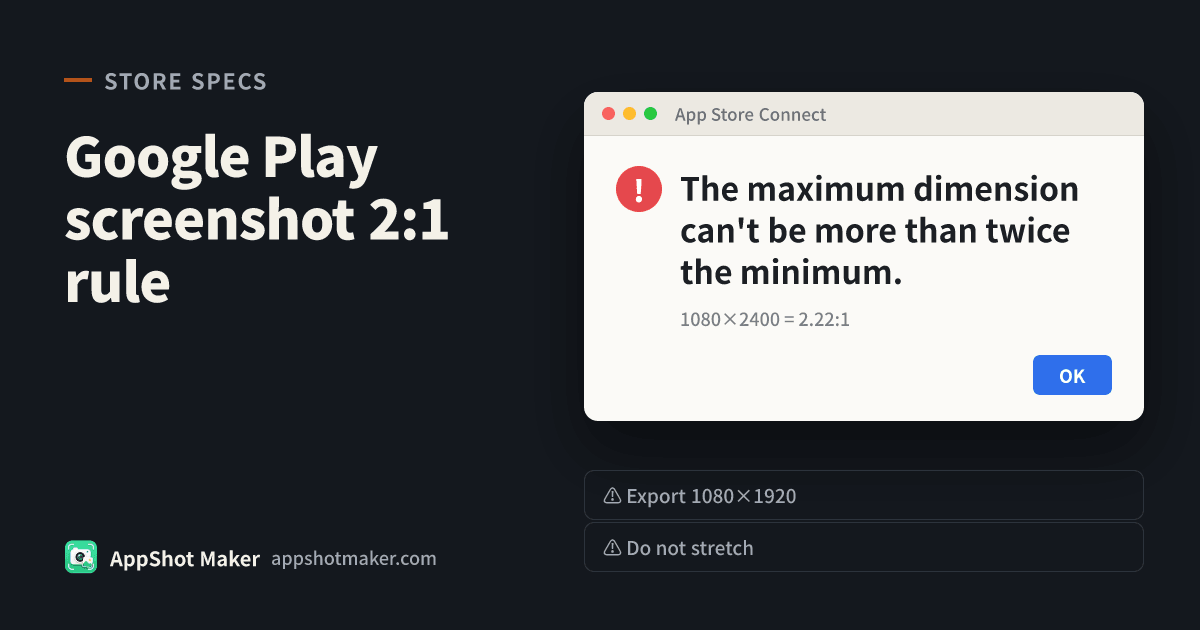
The file is fine. It is just too tall.
You drop a phone screenshot into Play Console and get a red line that reads, almost word for word: The maximum dimension of your screenshot can't be more than twice as long as the minimum dimension.
That is the Google Play screenshot 2:1 rule. It is not a corrupt JPEG, and it is usually not the alpha-channel reject either. Modern phone panels are 20:9 or 19.5:9. A raw 1080×2400 capture is 2.22 times as tall as it is wide, so it fails a hard 2.00 cap. The App Store iPhone well you already exported — Dynamic Island medium at 1179×2556 or 1206×2622 — lands around 2.17. Those files cannot be reused in the Play phone slot as-is.
This page was checked against Google's Add preview assets to showcase your app on 8 November 2026. The transparency fix is a different article; this one is only about aspect ratio.
What the official page actually requires
To publish a store listing, every screenshot must be:
| Rule | Official wording (8 Nov 2026) | What usually fails |
|---|---|---|
| Format | JPEG or 24-bit PNG (no alpha) | A PNG that still carries a transparency channel |
| Side length | Each side between 320 px and 3840 px | A huge capture, or a tiny thumbnail |
| 2:1 cap | The longest side may be at most twice the shortest side | 1080×2400 and most iPhone exports |
| Count | At least two screenshots across device types; up to eight per type | A listing with a single frame |
A second layer is marked highly recommended. Missing it does not block the listing, but it can keep you out of large recommendation formats that use screenshots: apps need at least four frames at 1080 px or larger, 9:16 portrait (minimum 1080×1920) or 16:9 landscape (minimum 1920×1080); games need at least three frames in one of those shapes. The same page also says not to upload images that are stretched or compressed.
So do not stop at “exactly 2:1.” 1080×2160 is 2.00 and will upload, but it is 18:9, not 9:16, so it may not count toward those recommendation formats. If you are going to rebuild the file anyway, export 1080×1920.
Which common sizes pass the Google Play screenshot 2:1 rule
The ratios below are long side divided by short side, calculated from the pixel counts — not estimates.
| Source | Pixels (portrait) | Long ÷ short | Passes 2:1? | Counts as 9:16 / 16:9 for featuring? |
|---|---|---|---|---|
| Typical Android capture | 1080×2400 | 2.22 | No | No |
| Another common capture | 1080×2340 | 2.17 | No | No |
| App Store Dynamic Island medium | 1179×2556 | 2.17 | No | No |
| App Store Dynamic Island medium | 1206×2622 | 2.17 | No | No |
| App Store Dynamic Island large (optional) | 1290×2796 | 2.17 | No | No |
| App Store Dynamic Island large (optional) | 1320×2868 | 2.17 | No | No |
| Right on the cap | 1080×2160 | 2.00 | Yes | No (18:9) |
| Play / many Android stores | 1080×1920 | 1.78 | Yes | Yes (9:16) |
| Landscape games | 1920×1080 | 1.78 | Yes | Yes (16:9) |
Apple's required iPhone well, re-checked today, is still Dynamic Island medium (1179×2556 or 1206×2622), not the large 1290×2796 slot. Both medium sizes fail Play's 2:1 test. An App Store Connect export is not a Play upload.
Crop, pad, or redesign — but do not stretch
Google asks you not to include stretched or compressed screenshots. Unlocking aspect ratio and dragging 1080×2400 into 1080×1920 will squash the UI. That is the one fix to skip.
| Fix | Use it when | Trade-off |
|---|---|---|
| Crop to 1080×1920 | The useful UI sits in the middle; the top and bottom are a status bar, nav bar, or empty space | You lose the edges. Skip this if a top search field and a bottom tab bar must both stay visible |
| Pad (letterbox) onto a 1080×1920 canvas | Viewers need the entire capture | You get bands above and below. Match the edge color or a blurred copy of the shot; flat black looks unfinished |
| Compose on a 1080×1920 canvas | The store image needs a headline and background, not a raw device capture | Takes a few extra minutes, but type stays sharp and the file is already 9:16 |
If the edges do not matter, crop. If both edges matter, pad or redesign. If you planned to add captions anyway, start on a 9:16 canvas instead of stretching a tall capture and then typesetting over the distortion.
First-hand path: preflight, then export 1080×1920
The on-site checker reads Play's spec line “long side no more than twice the short side” and flags the overflow before you touch Play Console.
- Open the screenshot compliance checker, select Google Play, and drop the 1080×2400 file or the iPhone export. A fail reads along the lines of “long side is 2.xx× the short side, over the 2× limit.”
- If the screenshot is already final and you only need new pixels, use the batch processor and tick Android 1080×1920. When the shapes differ, choose cover-and-crop or fit-and-pad — not stretch. Flatten transparency if the file still has an alpha channel, and export JPEG or 24-bit PNG.
- If you still need headlines or a shared Play / China-Android master, open the editor or the Google Play screenshot generator and set the canvas to 1080×1920 before you export. The download is already 9:16, so it clears both the 2:1 gate and the featuring shape.
- The simple resize tool locks aspect ratio by default, which is fine for shrinking a file that is already 9:16. Unlocking the chain to force 1080×1920 is a stretch. Do not use that path for Play.
Run the new files through the checker once more for sides, ratio, and alpha. The phone screenshot slot is also not the feature graphic: that asset is a separate, required 1024×500 Feature Graphic.
How this page differs from the spec sheet
- The full count, format, and feature-graphic table lives in Google Play screenshot requirements 2026. This page does not recopy that sheet; it explains why a normal phone screenshot is rejected and how to get to a file that both uploads and qualifies for screenshot-based recommendation formats.
- If Play rejected a transparent PNG, use Google Play screenshots rejected for transparency. That is a channel problem, not a 2:1 problem.
- If App Store Connect says The dimensions of one or more screenshots are wrong, Apple wants an exact pixel pair (medium must be 1179×2556 or 1206×2622). That walkthrough is the ASC upload-error guide.
The checker and the 1080×1920 preset are what we built so you can catch the Google Play screenshot 2:1 rule on your own machine, instead of finding out in Play Console.
Thirty-second checklist
- For every file, long side ÷ short side is 2.00 or less (a 1080-wide portrait may be at most 2160 tall)
- For recommendation formats: at least four app frames (three for games) at 1080×1920 or 1920×1080
- No stretched UI and no alpha
- JPEG or 24-bit PNG
- At least two screenshots on the listing; the 1024×500 feature graphic is uploaded separately
Wrap-up
Play does not demand one manufacturer's native resolution. It does demand a geometry cap: the long side cannot be more than twice the short side. Almost every current phone capture — and every required App Store iPhone medium export — overshoots 2.17. Do not stretch to hide it. Crop or rebuild at 1080×1920, preflight locally, then upload.