
Table of contents
- Quick nav
HarmonyOS App Filing: Step-by-Step Guide to Getting the Public Key and Certificate MD5 Fingerprint

1. Background
When doing China's government ICP filing (the MIIT app registration required to distribute an app in mainland China), or setting up some third-party SDK consoles, you're often asked for your HarmonyOS app's public key and certificate MD5 fingerprint. Many developers are a bit lost the first time they hit this step.

2. Solutions
Option 1: Download the certificate from AGC, then extract the details
Step 1: Download the .cer certificate
First create your project in AGC (AppGallery Connect), then download the .cer certificate file from the relevant section.
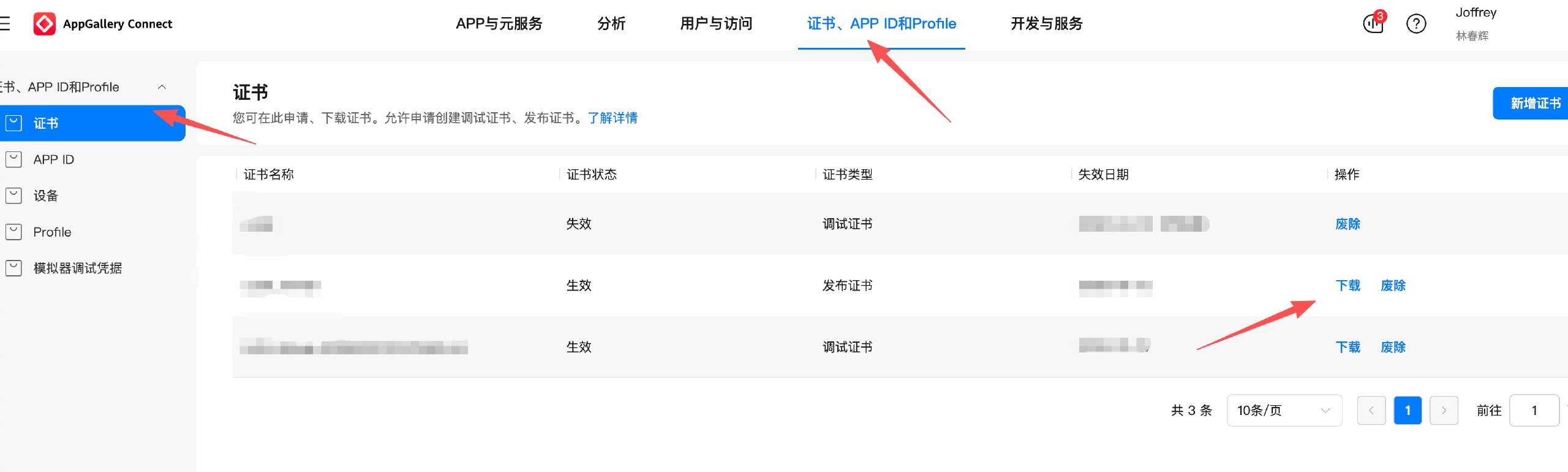
Step 2: Upload the certificate to get the public key and MD5 fingerprint
Open the HarmonyOS app filing MD5 key and public key tool and upload the .cer certificate you just downloaded to get the information you need.

Option 2: Get them from the AGC console
First, set up a project in AGC and add your HarmonyOS app to it (open AGC). Everything that follows builds on this.

Second, the public key is shown under "Verification public key" at the top of the page, where you can see and copy it directly.
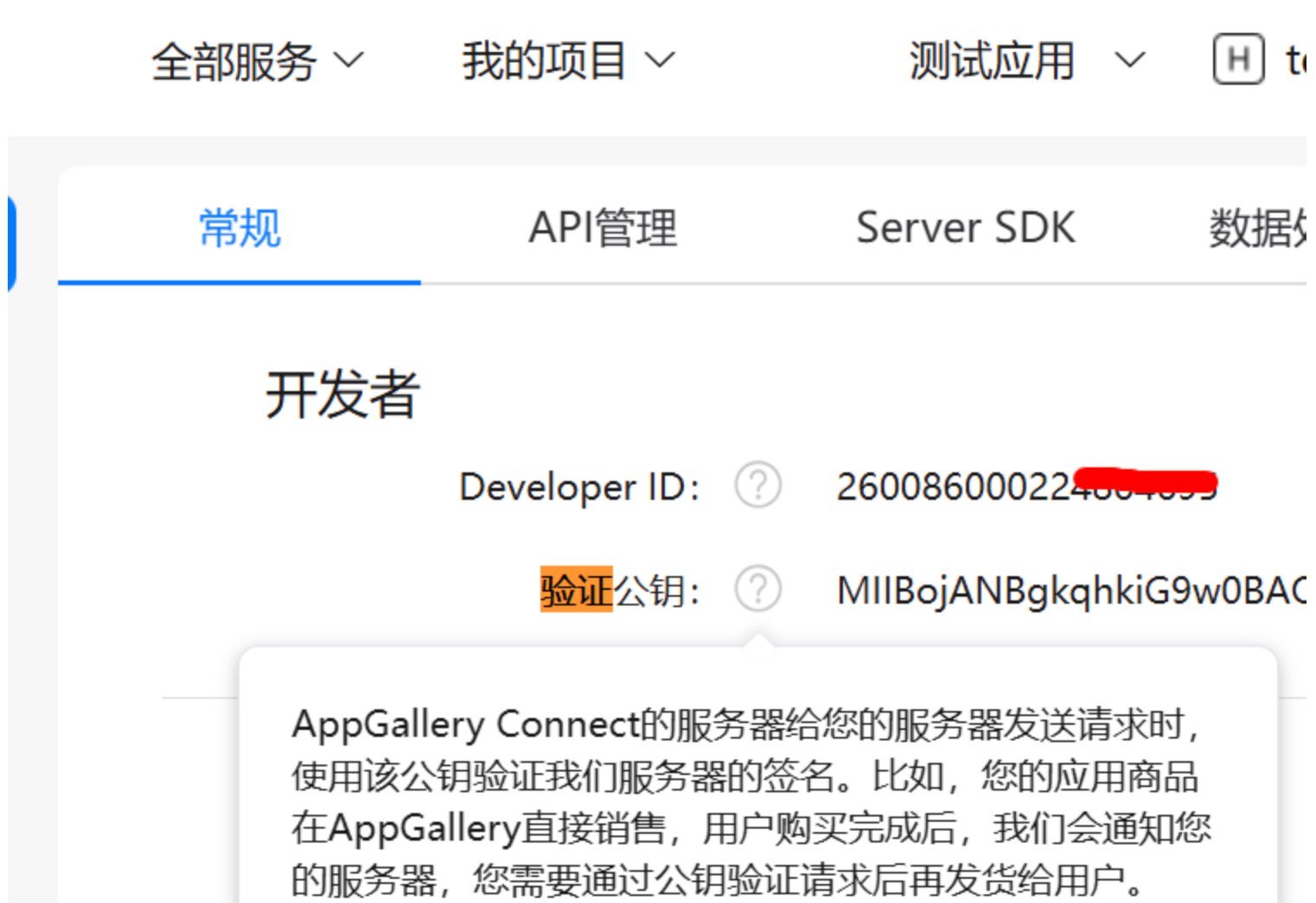
Third, for the certificate fingerprint: if you haven't configured it before, just follow the prompts on the page; if you have, copy the existing value. The HarmonyOS process is similar to Android's and uses the Keytool utility. Open a command prompt (CMD) and change to the directory containing keytool.exe (the path below assumes the JDK is installed under Program Files on drive C):
cd C:\Program Files\Java\jdk\bin
For the details, see Huawei's official documentation: Configuring the app signing certificate fingerprint. Once everything is configured, you can copy the values and use them.
Option 3: Extract them directly with OpenSSL
If you have the certificate file (.cer) at hand, you can also extract what you need with OpenSSL, without relying on the console.
To get the public key, run:
openssl x509 -in xxx.cer -pubkey -noout
To get the certificate's MD5 fingerprint, run:
openssl x509 -fingerprint -MD5 -noout -in xxx.cer
Replace xxx.cer with the actual path to your certificate file, run the commands, and you'll have what you need.